Streamlining License Management with Veeam Service Provider Console (VSPC) and Pulse Integration

If you’re a Veeam Cloud Service Provider (VCSP), you know the challenges of handling licenses for tenants. The old way of emailing .lic files, waiting for tenants to install them, and then verifying everything worked correctly is time consuming and prone to errors. It may work for a few customers, but as you scale, it quickly becomes unmanageable.

This is where the Veeam Service Provider Console (VSPC) changes the game. By integrating VSPC with the Veeam ProPartner Pulse portal, you can manage license distribution, usage reporting, and billing in a centralized, automated way. No more manual file exchanges and licenses are pushed directly into tenant environments with minimal effort. Think of Pulse as the master licensing database and VSPC as the control plane that brings those licenses to life in your tenants’ environments.

In this post, I’ll walk through how this works and why it’s a game-changer for service providers

  • How to connect Veeam VSPC Console to Pro Partner Pulse portal
  • how to manage your license keys (creating, assigning, revoking)
  • Company mapping (auto-map, manual, merge)
  • Install the Veeam license to tenant VBR using VSPC console. 

Prerequisites

Before this integration can work smoothly, a few conditions must be met on the tenant side:

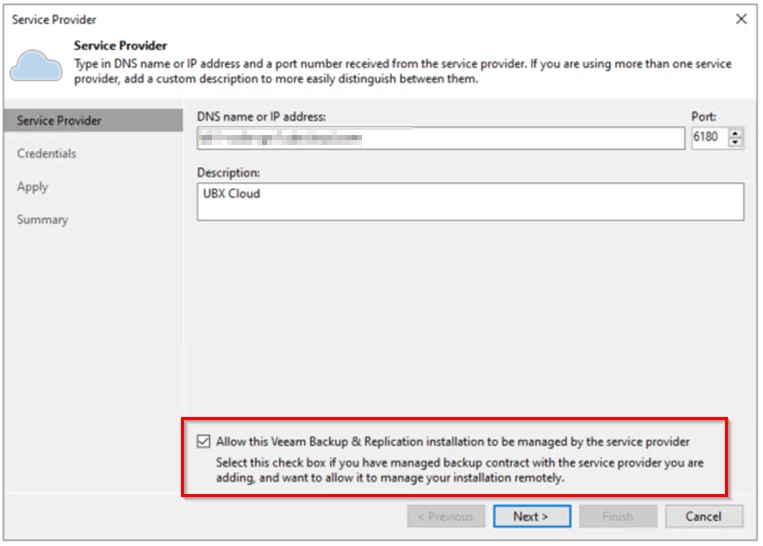
  • On the Tenant VBR side add the Cloud connect account in Veeam Service Provider
  • Enable Allow this VBR to be managed by the Service provider.
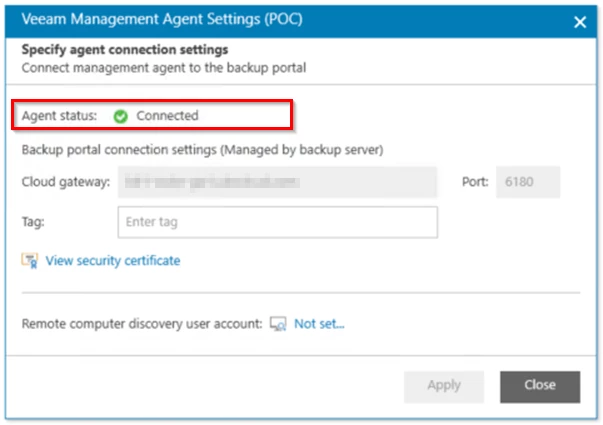
  • Once the Configuration Completed, Confirm the Veeam Management Agent is connect with Service provider gateway
  • Any SSL/TLS inspection on network security devices must be disabled for Veeam gateways to allow uninterrupted communication

These steps ensure that VSPC can fully manage the tenant’s environment and push licenses without hiccups.

Step 1: Connecting VSPC to Pulse

Pulse is part of Veeam pro partner portal where you manage licensing and submit monthly usage to your aggregator. Pulse is the central place for managing your contracts, generating licenses, and reporting usage. By default, you might log in manually, download a license, and send it off. But with VSPC integration, this entire process becomes seamless

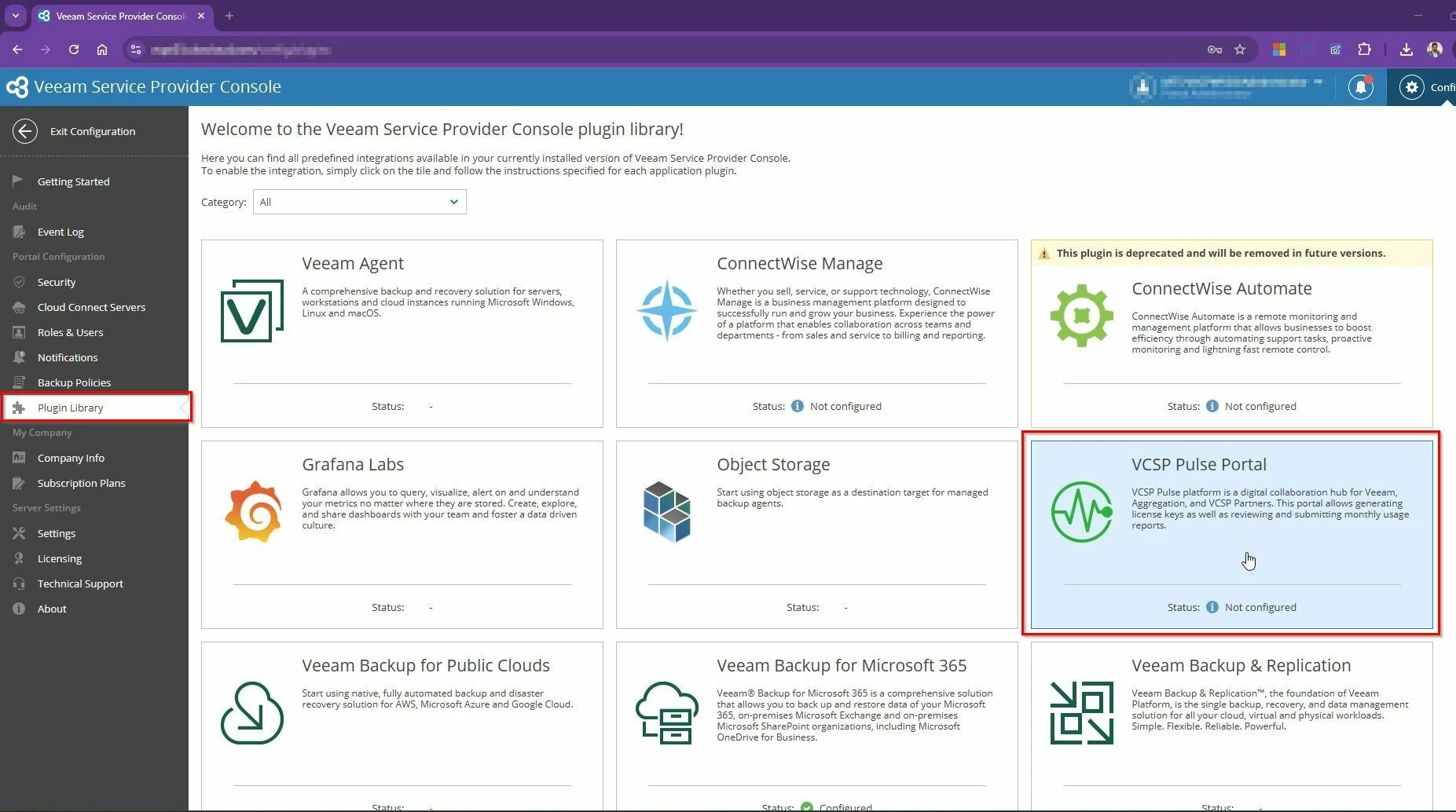
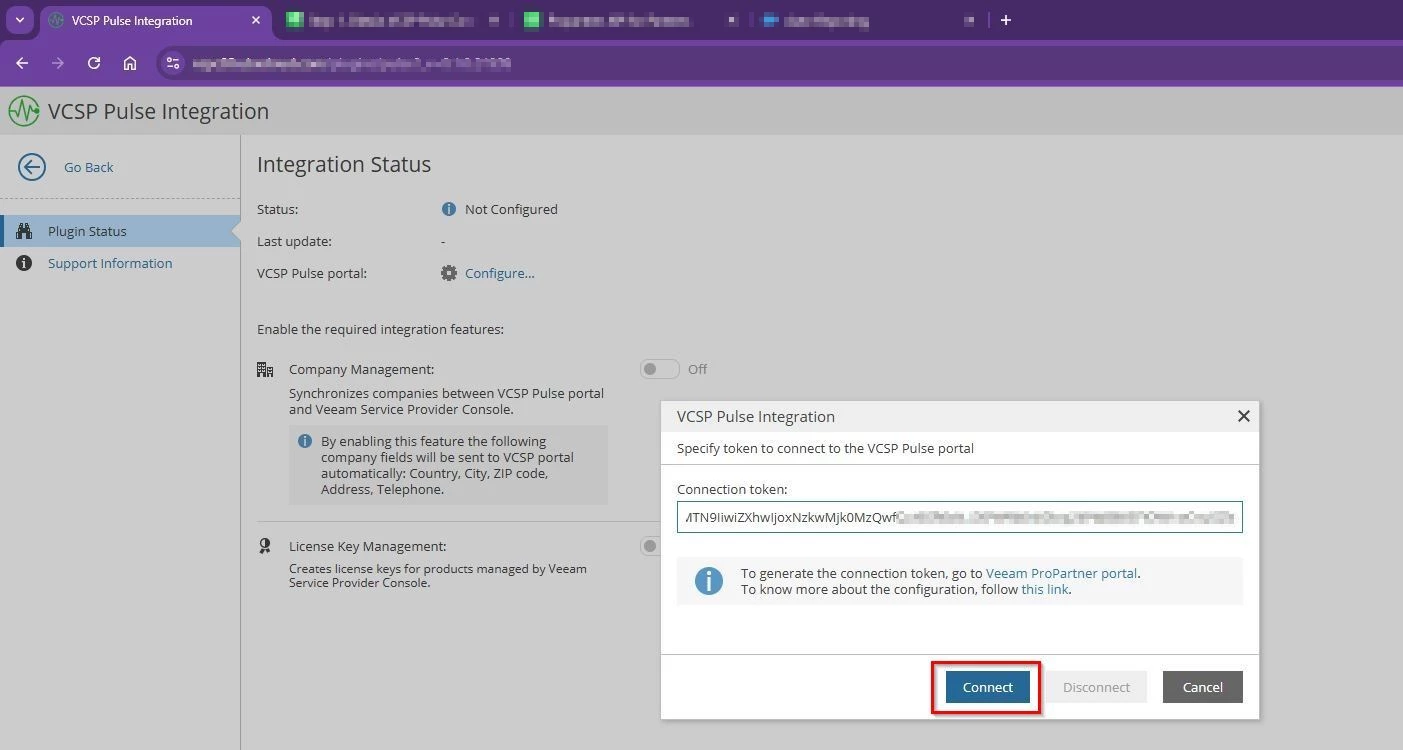
  • In VSPC, open Configuration → Plugin Library → VSPC Pulse Portal.
  • Generate a token in Pulse (using your Pro Partner credentials).
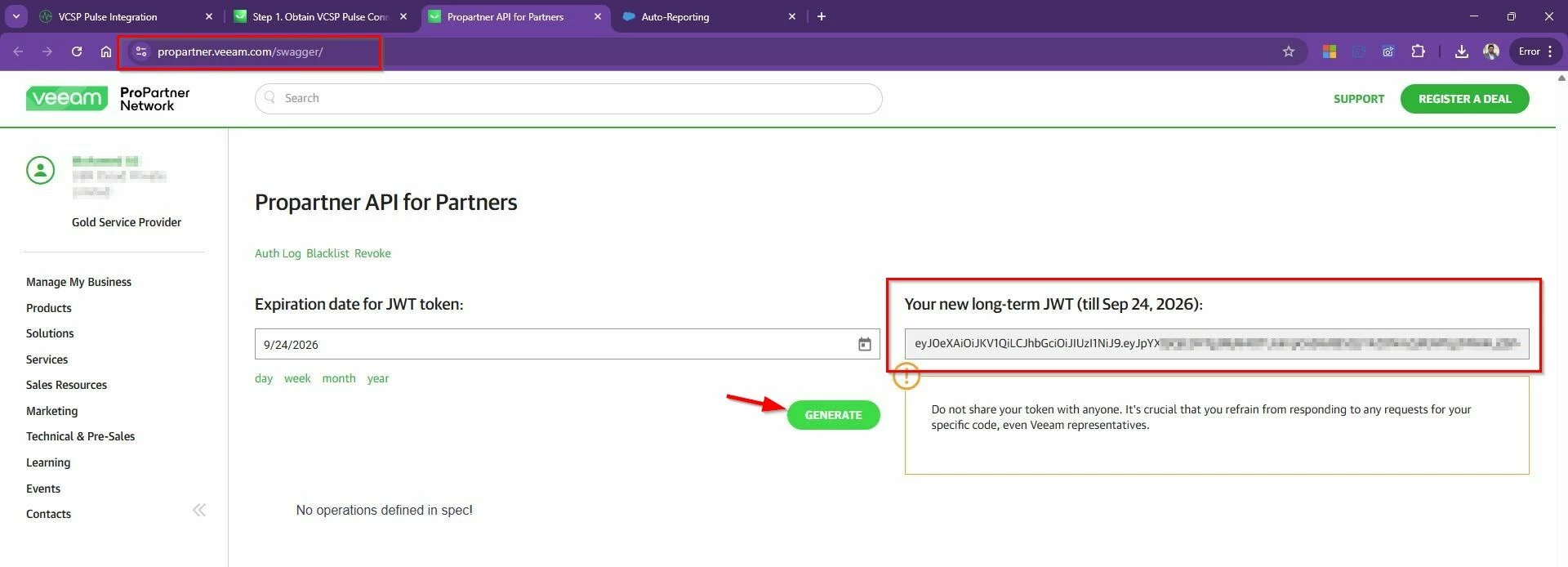
  • Log in to Veeam ProPartner portal. –> Open the Propartner API (https://propartner.veeam.com/swagger/) for Partners.
  • Generate API token.
  • Copy the API token into VSPC and connect.

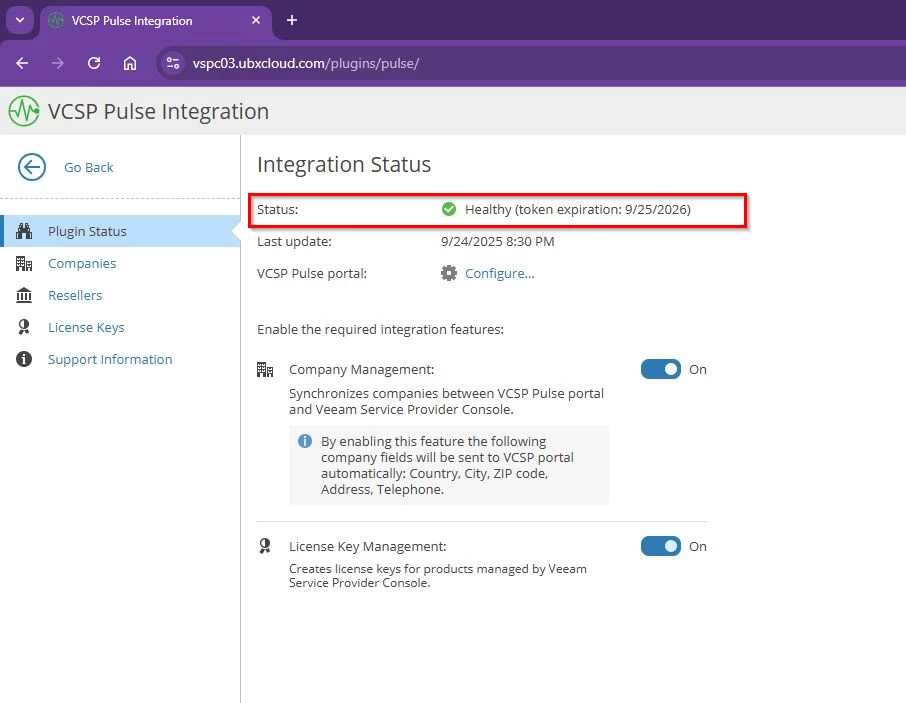
Once connected, you’ll see a green checkmark for health status. From there, you can enable pulse integration features:

  • Company Management – Map and Synchronizes companies between VCSP Pulse portal and Veeam Service Provider Console.
  • License Key Management – lets you create, assign, and push licenses from the console to the tenants.

Step 2: Company Management

Service Provider Console company is a company in the Veeam Service Provider Console (VSPC) that you manage and offer backup services to. They have a profile associated with whatever Veeam products that they may have, while the Pulse company is a way to create a license and assign it to that company. So really Pulse is just a place for you to be able to create an entry and create a key and assign it to the company in VSPC portal.

You must configure mapping in Veeam Service Provider Console and Mapping triggers synchronization of companies contact information, and enables further integration and provision the license in pulse portal. This mapping makes it painless to assign the right license to the right customer.

  • Auto-map – If customer names match or are similar in Pulse and VSPC portal, it will automatically links them in Pulse.
  • Manually map – This method when you have company already created or exist in Veeam Service Provider Console but the name in VCSP Pulse do not match then you can use this option to map the company with company already created in pulse portal
  • Merge companies – If a customer has multiple entries (head office + branches), you can consolidate them into one.
  • Create Company – If the company doesn’t exist in one system, you can create it directly

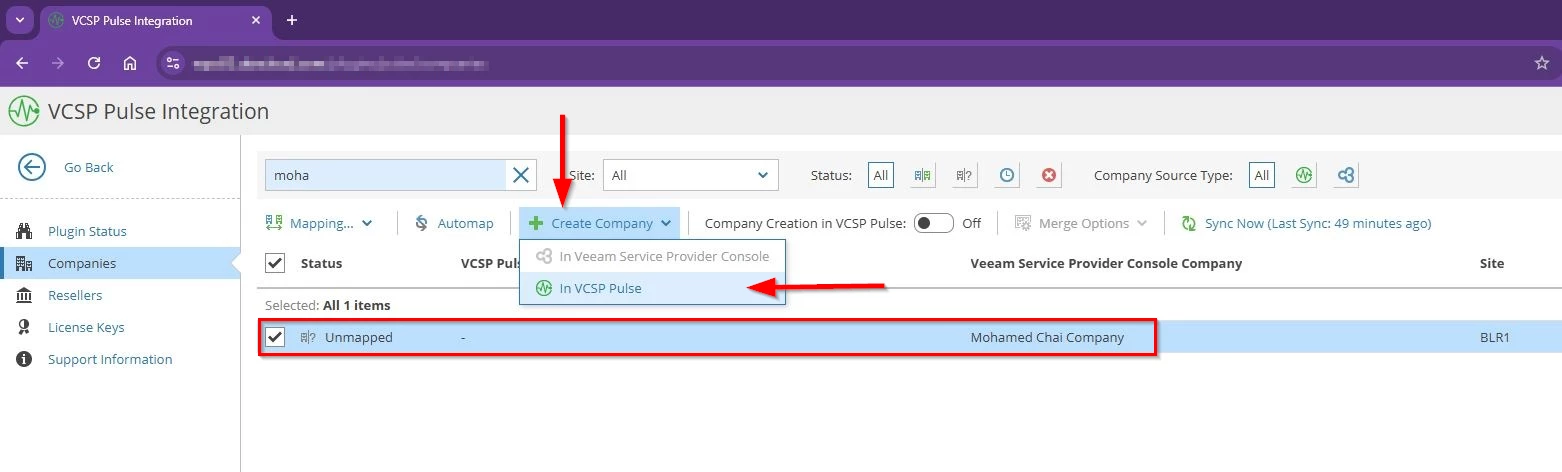
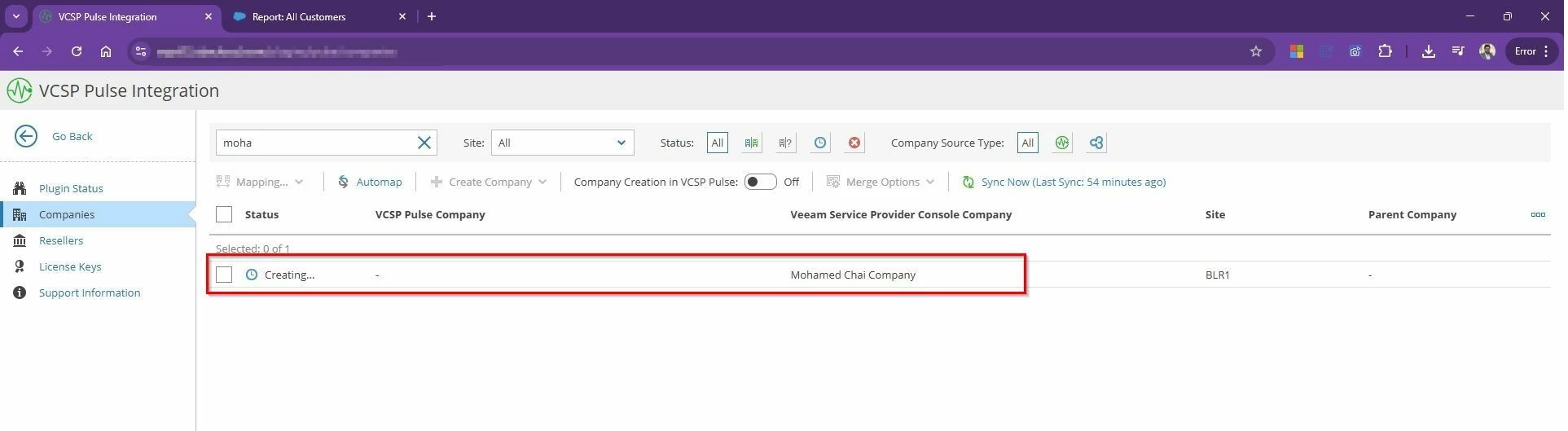
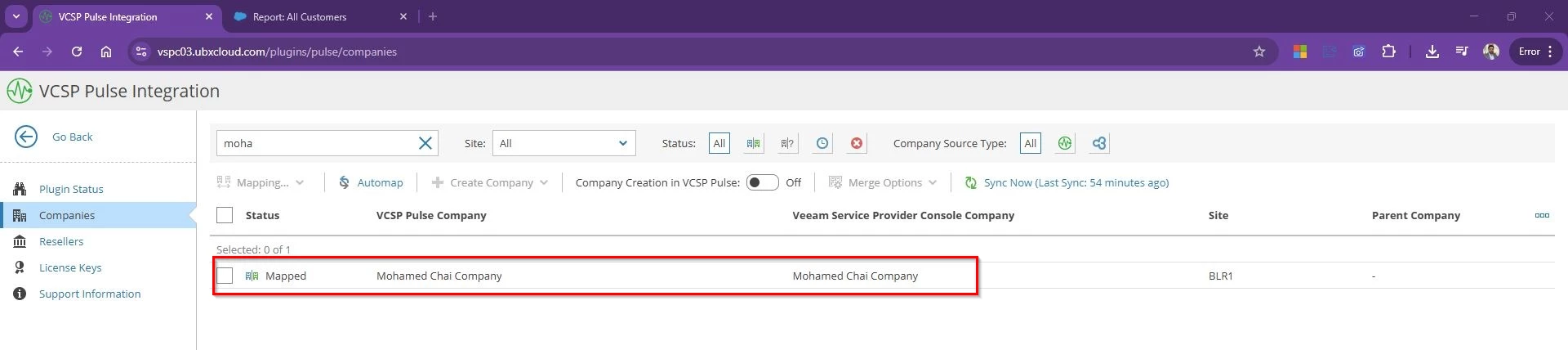
Example: In my setup, “Mohamed Chai Company” already exists in VSPC but not in Pulse. When I choose Create Company, it is created in Pulse and instantly VSPC marks it as Mapped. This mapping also generates a CRM ID in Pulse, tying the records together for reporting and licensing. The reverse is also true: if a company exists in Pulse but not in VSPC, you can create it in VSPC and the mapping is established automatically.

  • Select the Company that needs license to be assigned → Select Create Company In VCSP Pulse

Once the company created in Pulse portal you will see the status changed from unmapped to Mapped.

Without this mapping, licenses can’t be accurately assigned. With mapping, everything lines up correctly, making usage reporting effortless.

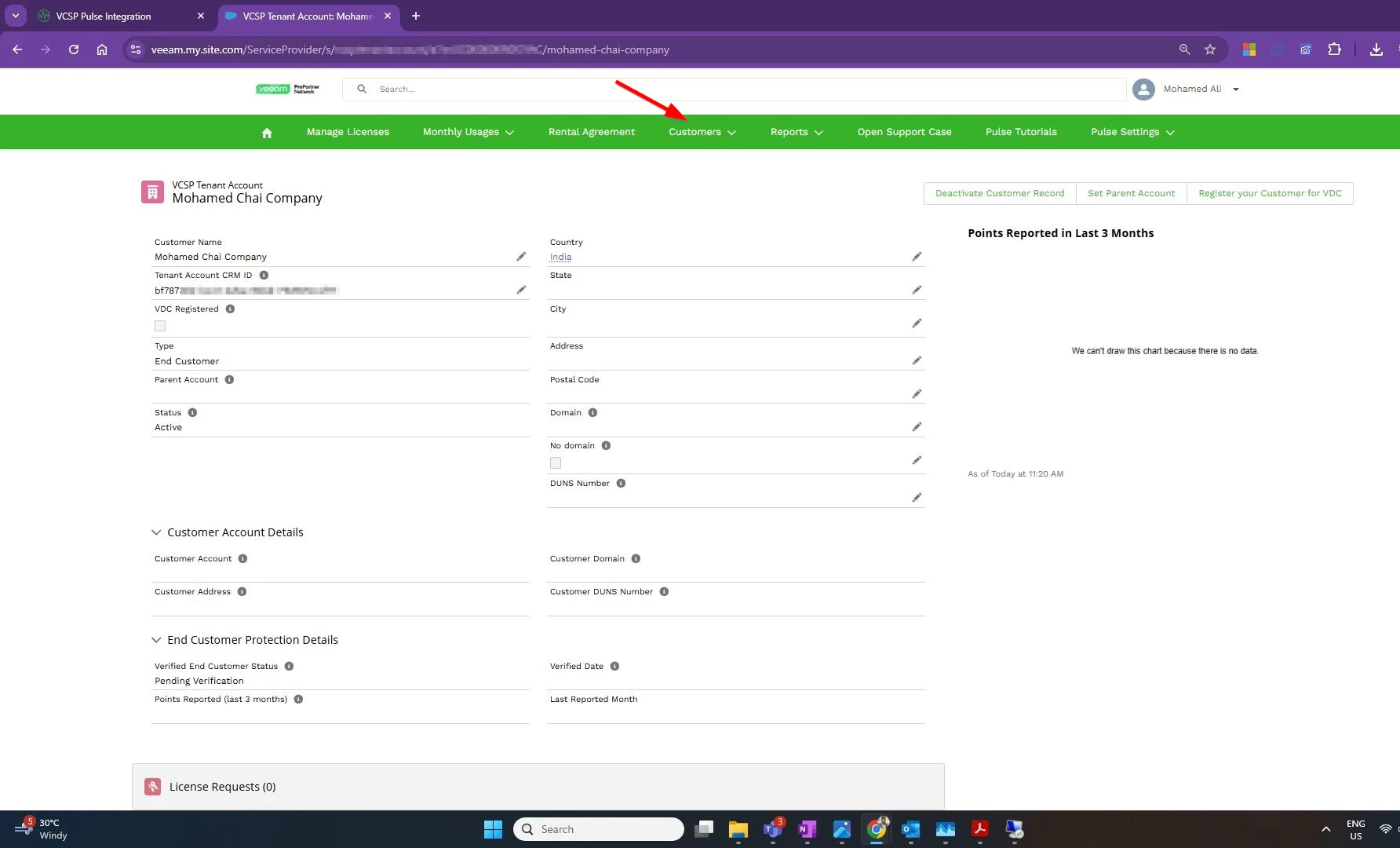
You can see the VSPC tenant account created in Pulse portal as well and got the Tenant Account CRM ID. You can access the companies from Pulse portal –> Customers –> All customers.

Step 3: Create License Keys

Once company mapping is complete, license creation is straightforward:

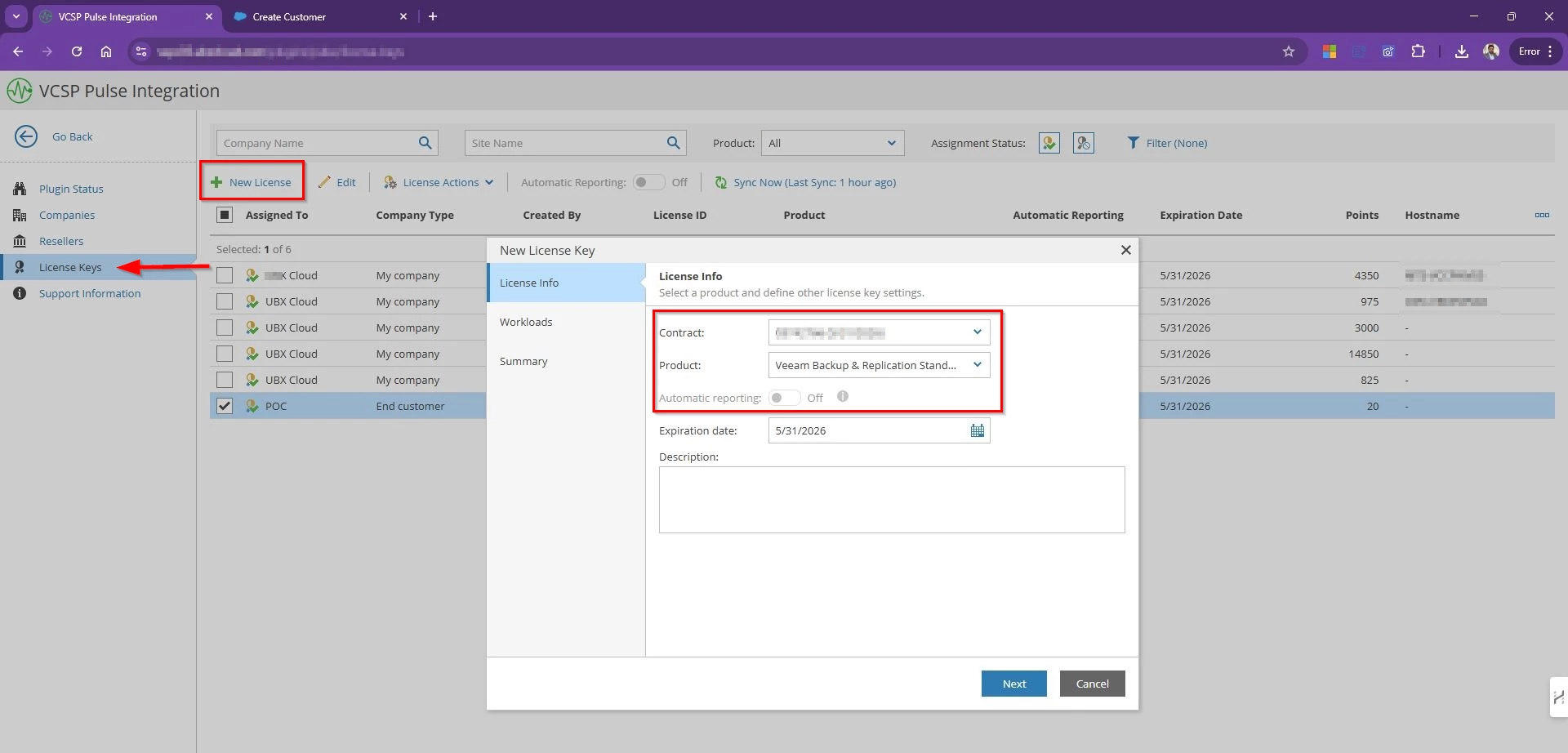
  • Go to VCSP Pulse integration page –> License keys –> New License
  • Select the contract, the product (such as VBR or Veeam Agent), and the edition.
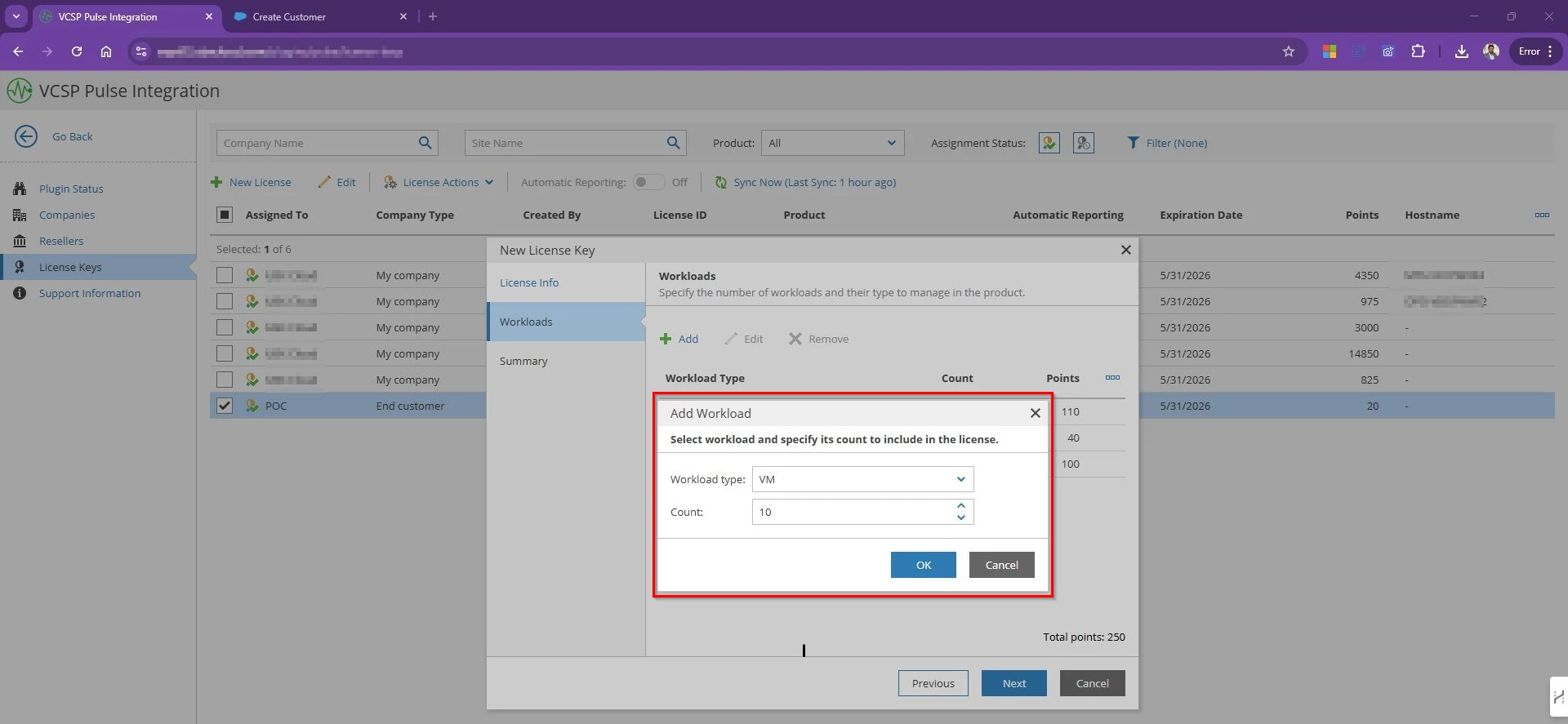
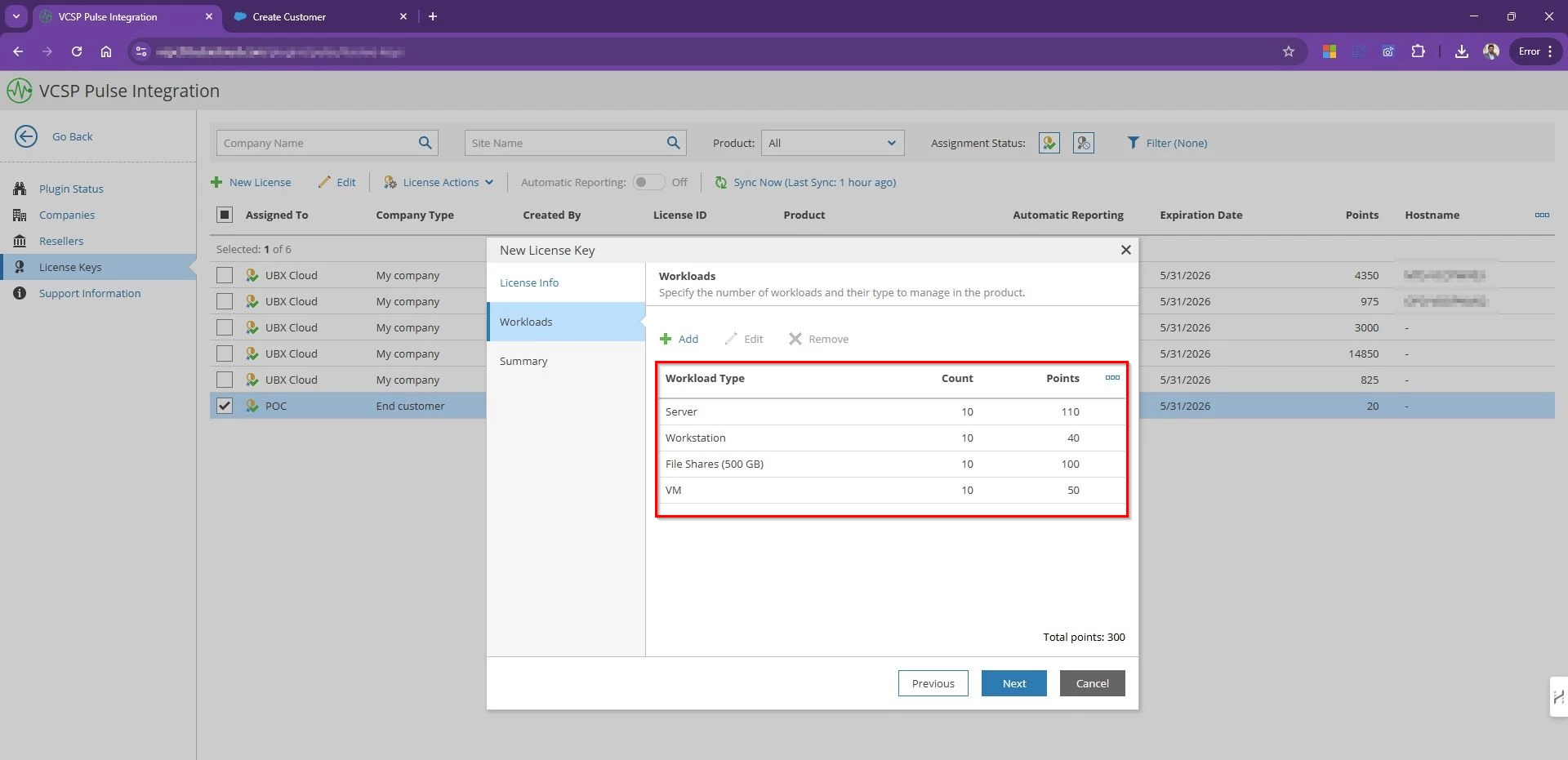
  • Choose the workload type (VMs, servers, workstations) and specify the numbers
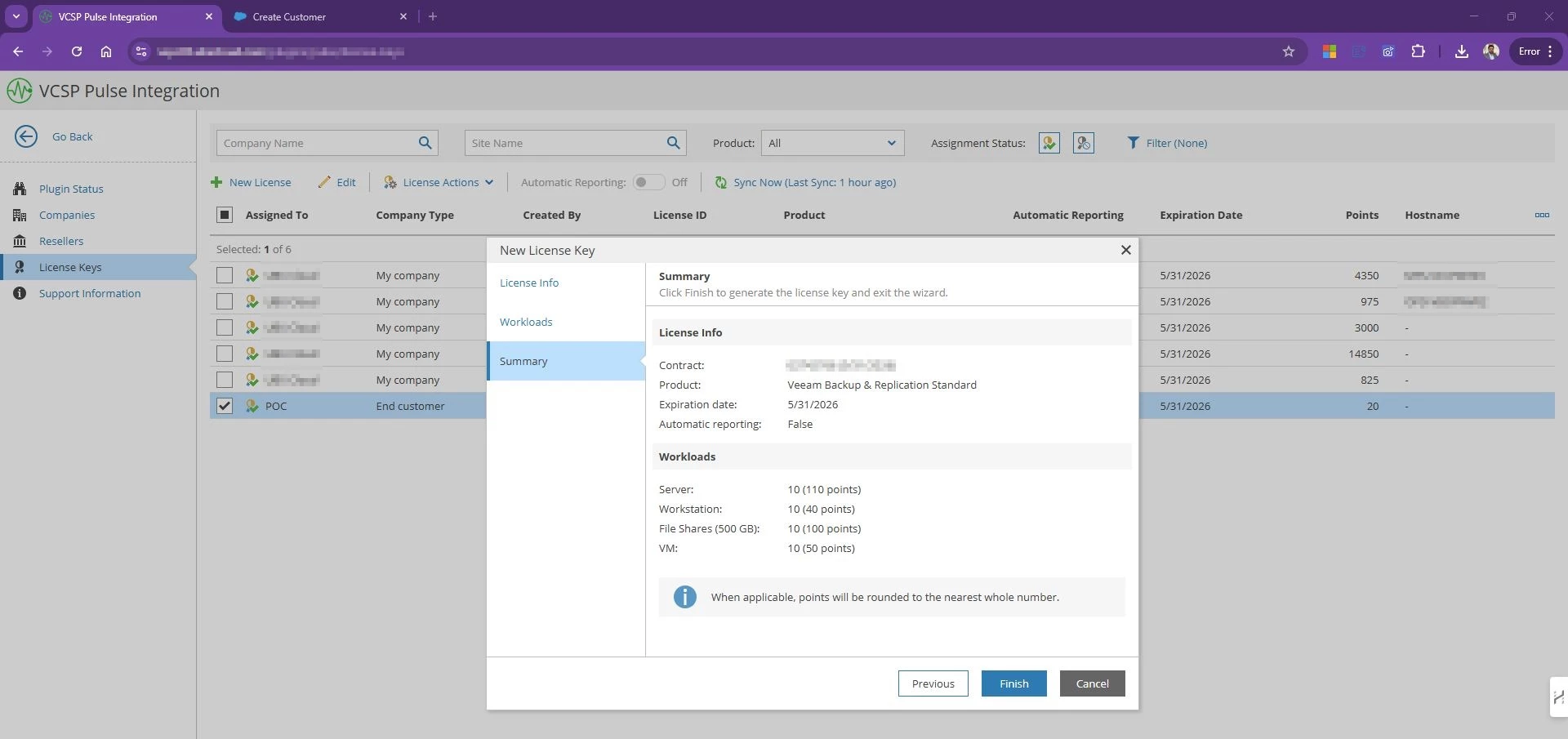
  • Review the summary and license Info and Finish to create license.
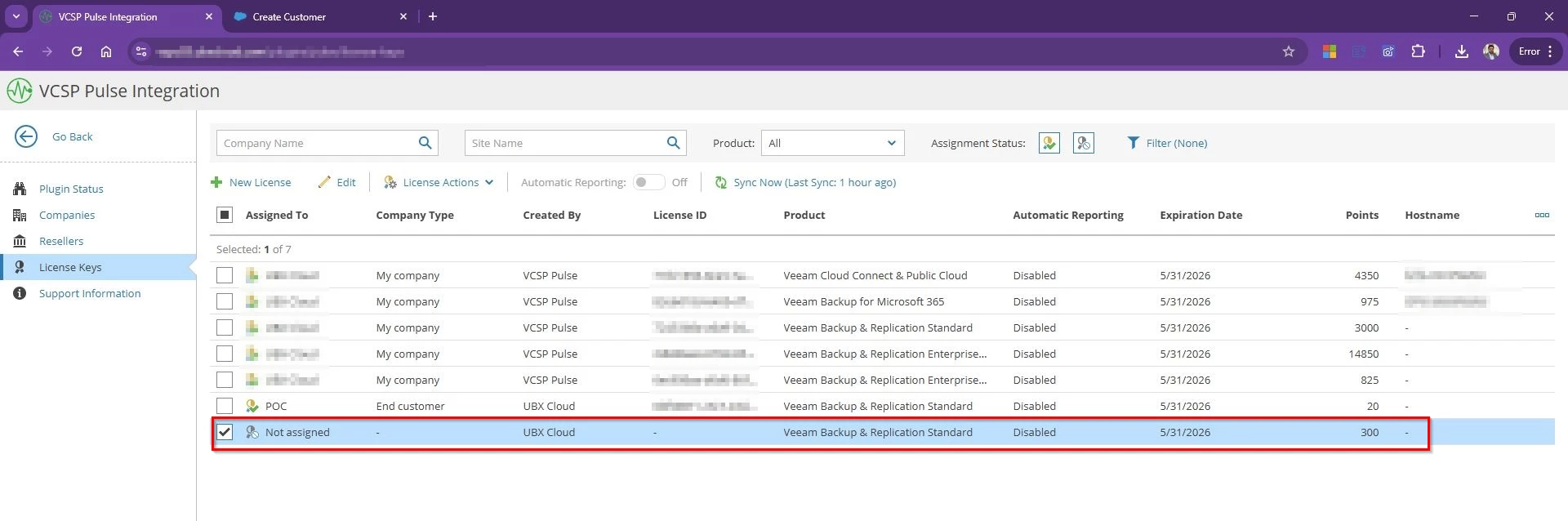
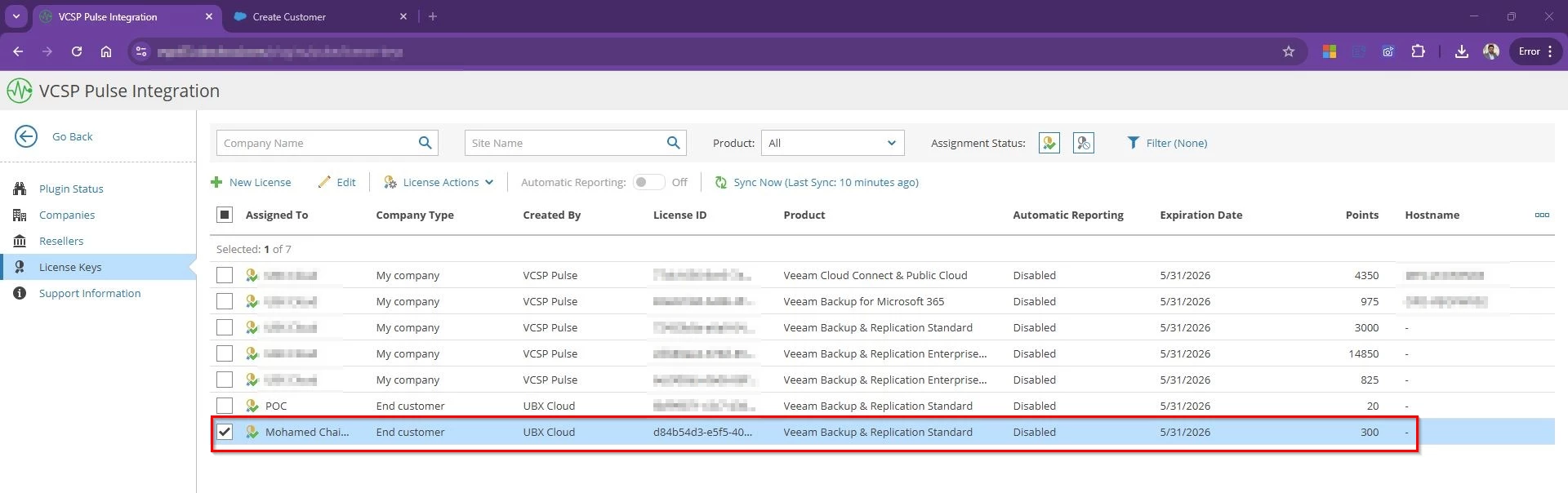
  • The new license appears in VSPC, ready for assignment.
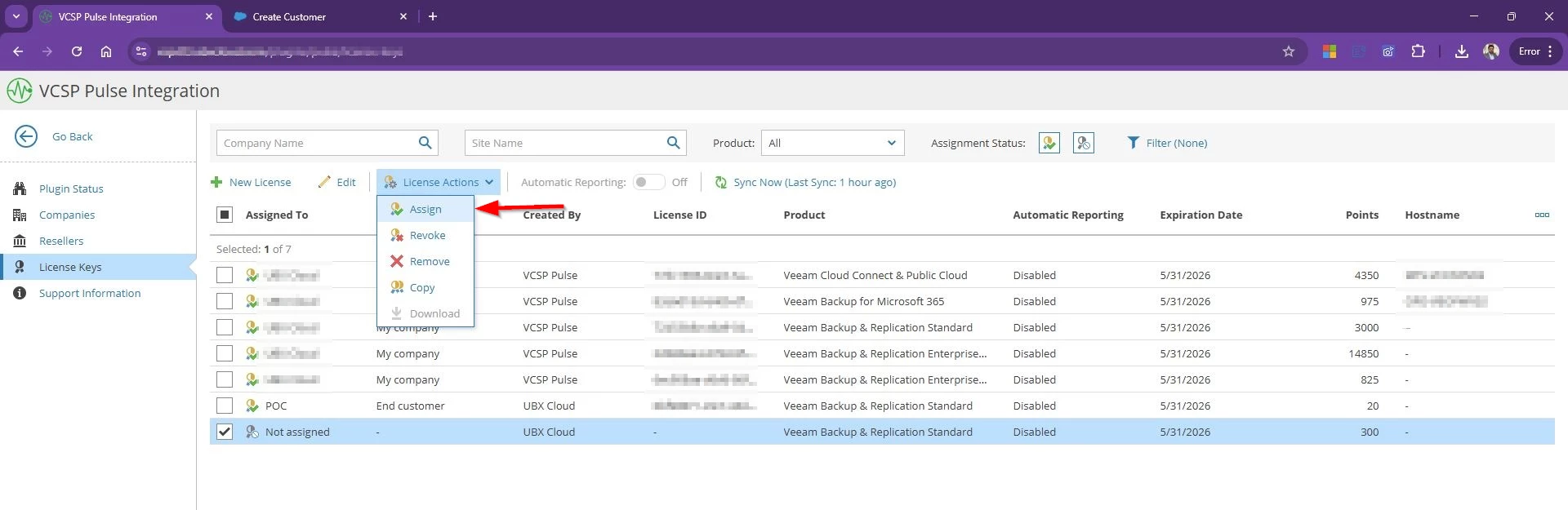
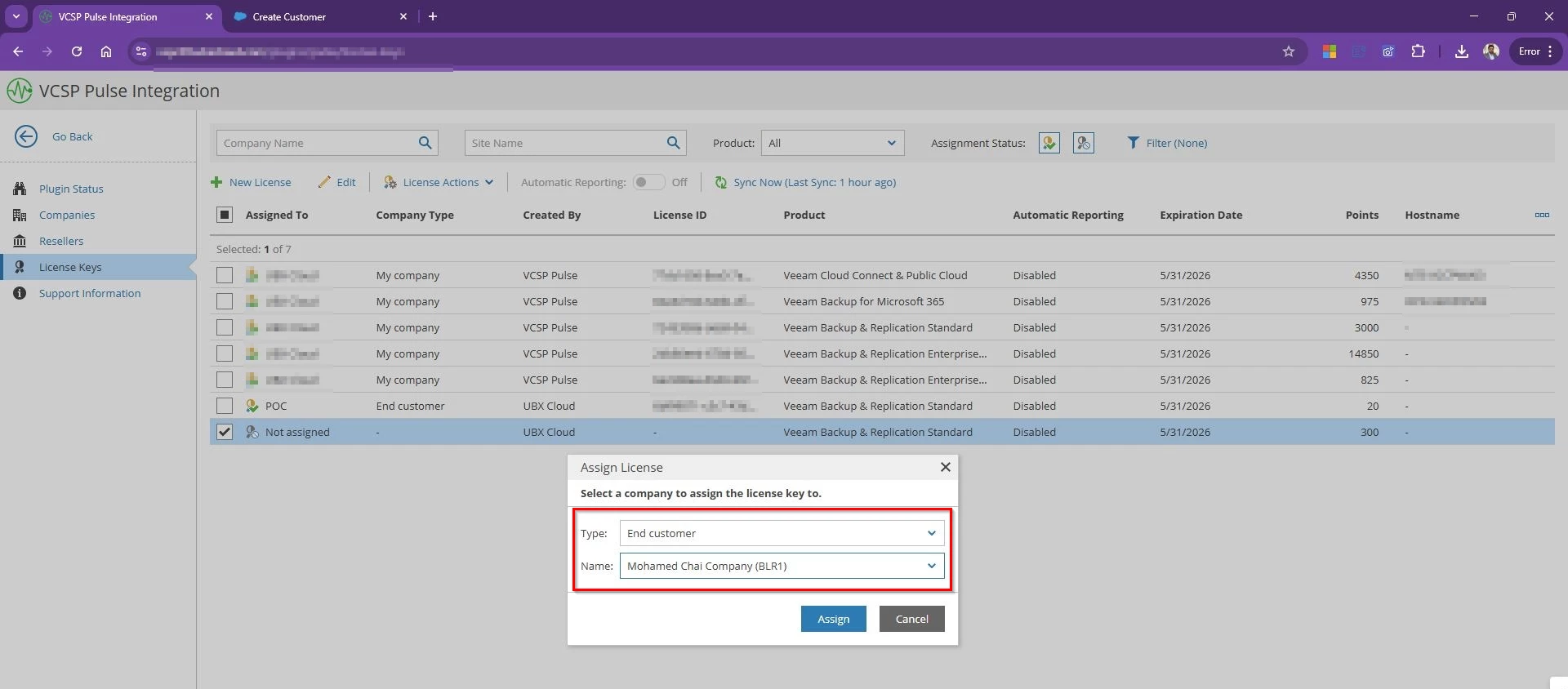
  • Select the License →  License Action →  Assign
  • Select the Type End Customer –> Choose the Company (“Mohamed Chai Company”)

Now the license file is assigned to the company and ready to be installed. 

Step 4: Install the license keys to Tenant VBR

Once the license is assigned to a tenant, the final step is installing it on the VBR server. This is where VSPC saves you from the old copy-paste hassle. 

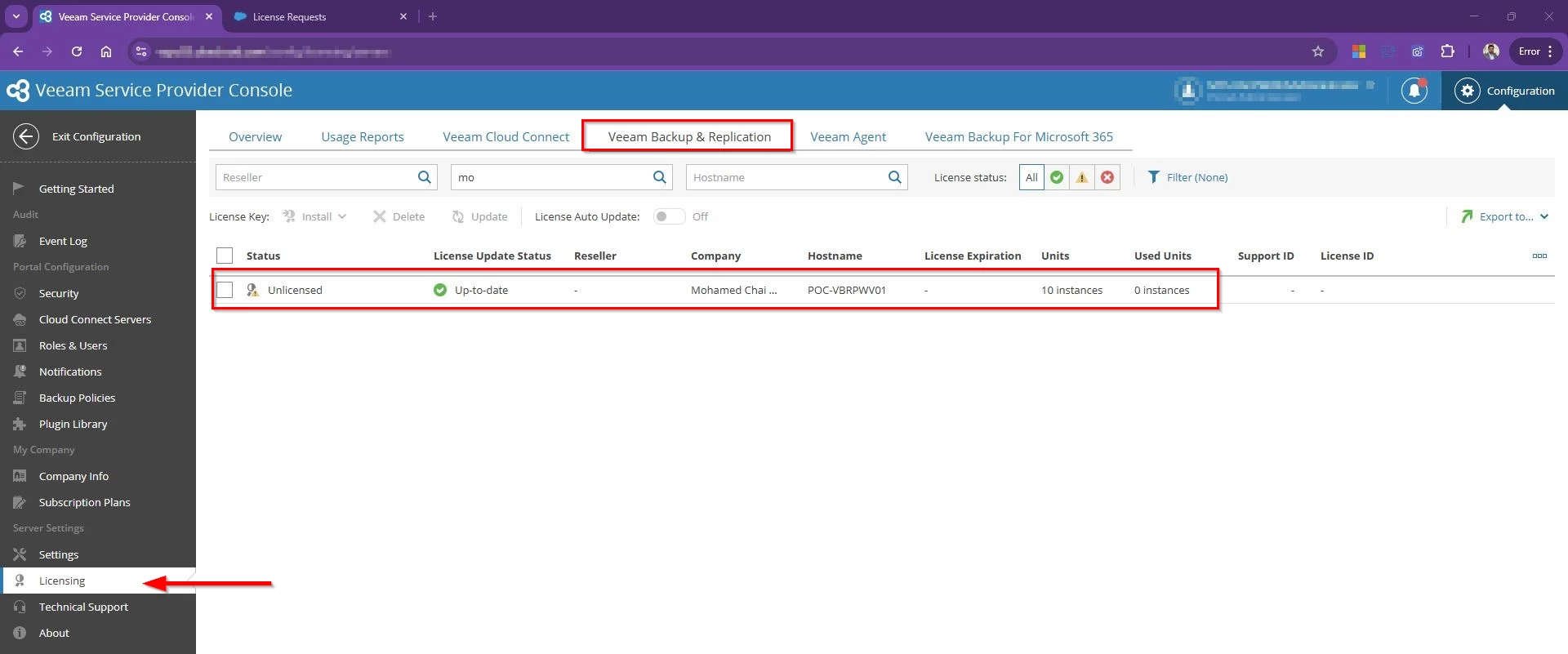
  • Go to Configuration –> Licensing –> Select Veeam Backup & Replication Tap 
  • Find the Company name which we assigned the license to and you will see the tenant’s VBR server status listed as Unlicensed.
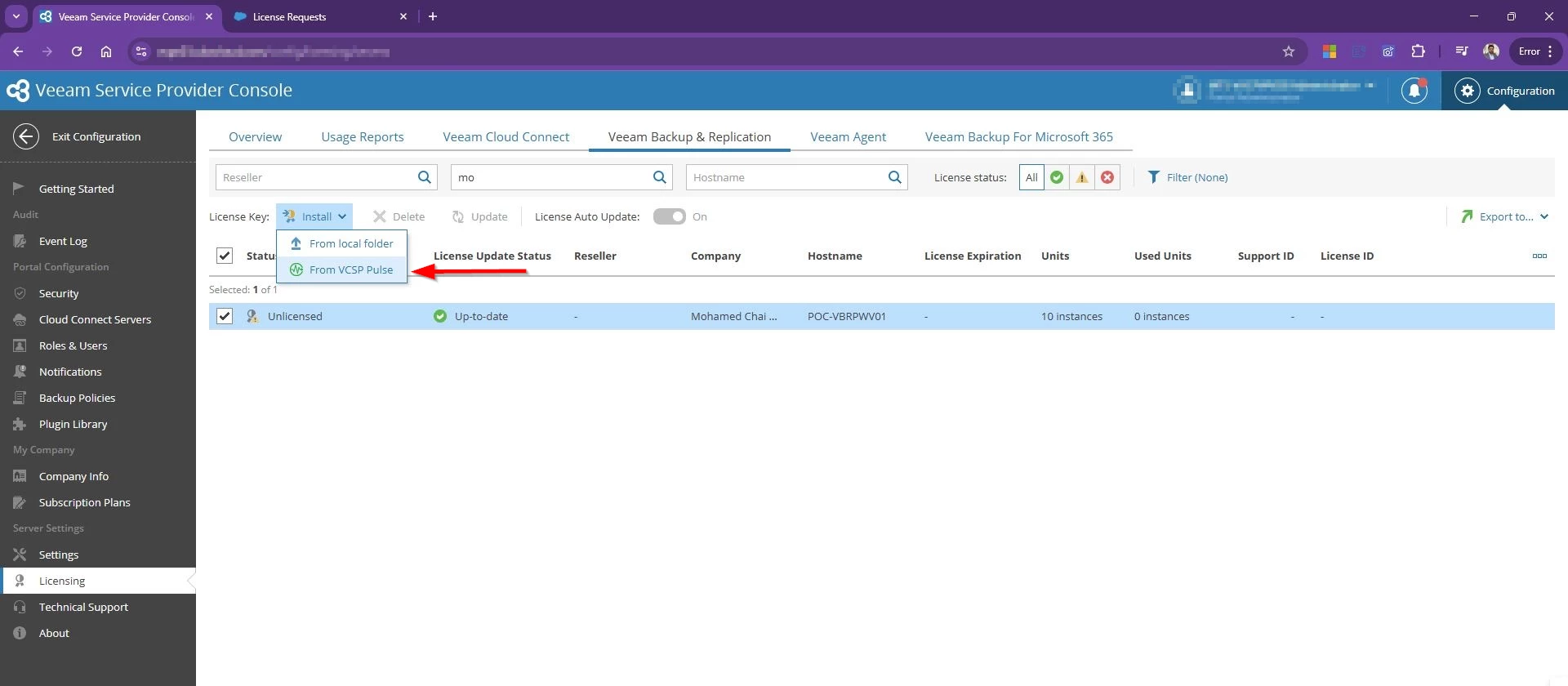
  • Choose Install license Key –> From VCSP Pulse
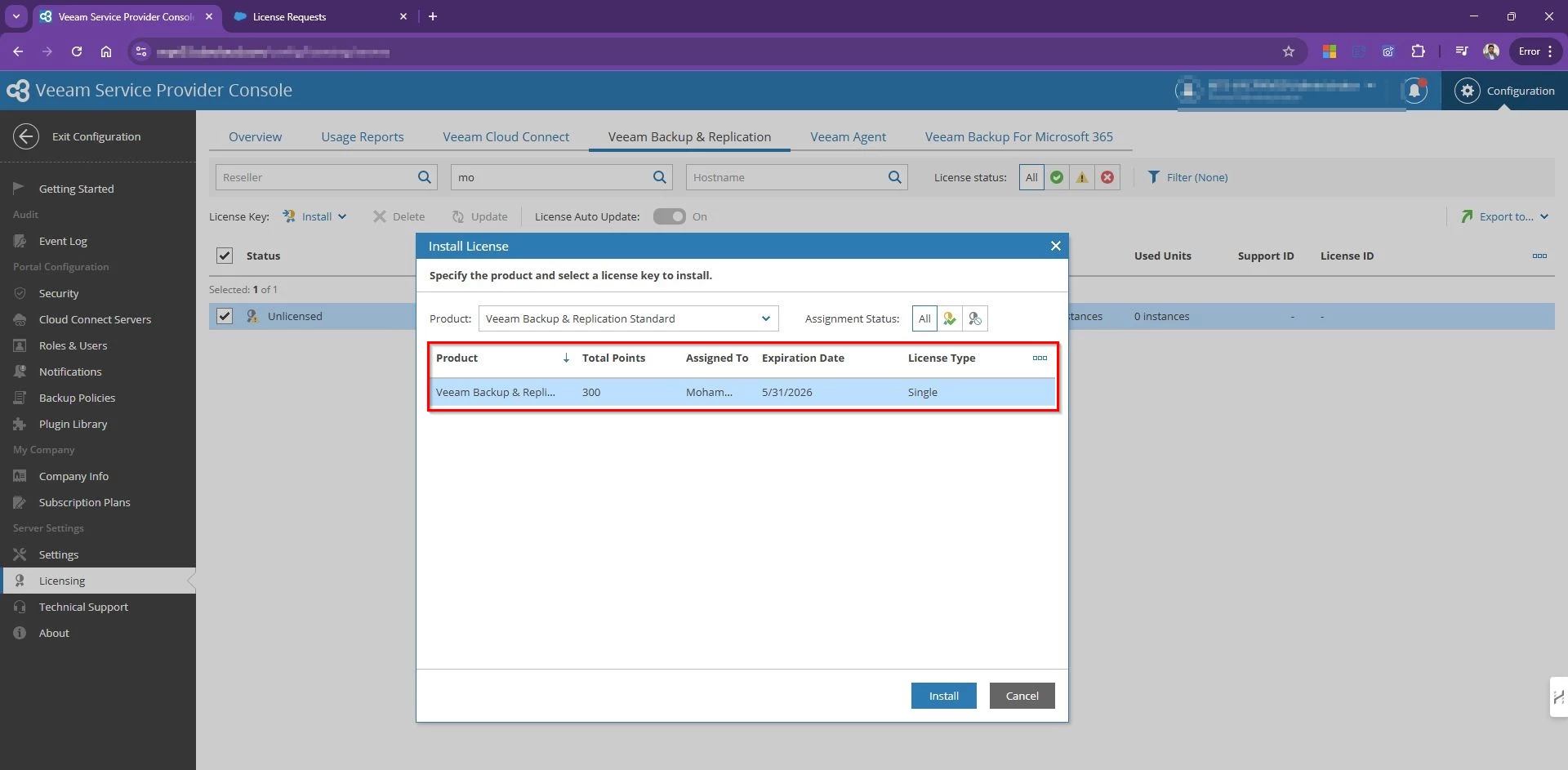
  • Select the Product and available license Key to install

VSPC will now push the license directly to that VBR instance. No downloads, no email attachments, no jumping into RDP!

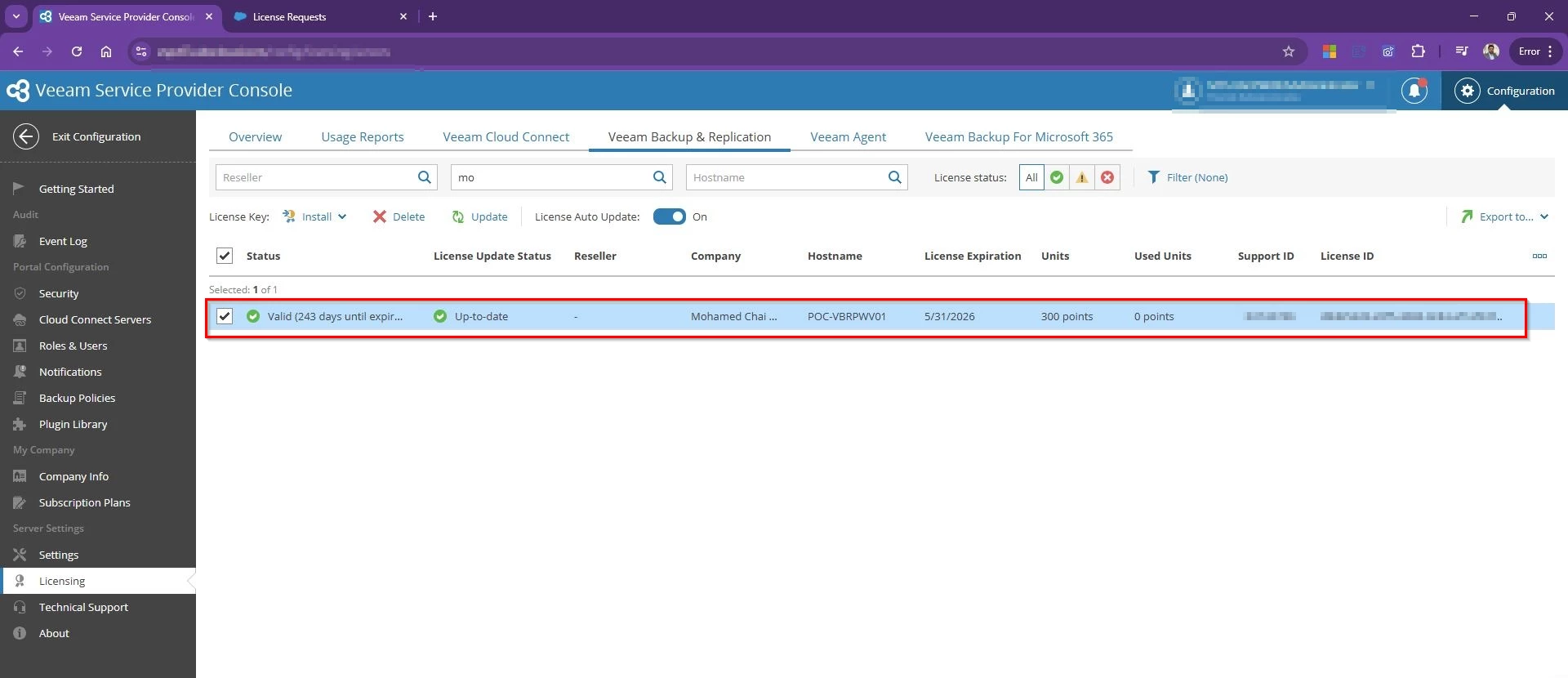
Bingo! Tenant VBR is activated now! 

If the tenant server is offline at the time, The moment it comes back online and reconnects with VSPC, the license install will complete automatically.

Veeam Cloud Connect Upgrade to V13 Step by Step Service Provider Guide

Veeam Backup and Replication v13 is now in the wild, and for service providers running Cloud Connect this is not just another point upgrade. It is a major platform refresh that touches the core backup server, gateways, explorers, agents, and the tenant facing control plane. With v13 bringing stronger security defaults, modernized components, and several legacy features finally retired, VCSP partners should plan their upgrades early so tenant adoption is smooth from day one.

I recently upgraded my Cloud Connect environment from 12.3 to v13. In this post I will walk through the upgrade flow exactly as the wizard presents it, with short practical notes at each stage. The focus is simple. What to verify, why Veeam is asking for it, and how to avoid tenant impact while moving your Cloud Connect stack cleanly onto v13.

Preparing for the upgrade

Before starting the upgrade, there are a few best practice steps you should complete across your VBR and Cloud Connect infrastructure. These include:

  1. Verify system compatibility
    Confirm supported operating systems and system requirements are met for all Cloud Connect components, including the Cloud Connect server, gateways, repositories, and database hosts.
    https://helpcenter.veeam.com/docs/vbr/userguide/system_requirements.html#backup_server_windows
  2. Take the VM snapshots with application consistent 
    Create snapshots of all critical servers such as the Cloud Connect VBR server, cloud gateways, and database servers. This is strongly recommended in production as an extra rollback layer.
  3. Back up the Veeam configuration
    Export the VBR configuration from the Cloud Connect server. This is your primary rollback safety net if anything unexpected happens.
  4. Back up the Veeam database
    Take a full backup of the VBR configuration database.
    • If using PostgreSQL, take a full pg dump.
    • If using SQL Server, take a full SQL backup.
  5. Confirm tenant version readiness
    Make sure all tenant VBR servers are on the minimum supported build compatible with Cloud Connect v13. Tenants on older builds will fail after the provider upgrade. You will also see the tenant list during the Configuration Check stage.
  6. Put Cloud Connect into maintenance mode
    Once preparation is complete and your maintenance window begins, put Cloud Connect into maintenance mode so tenant activity is controlled and predictable. Maintenance mode lets any in flight backup or backup copy task complete cleanly, so data already being written to cloud repositories is not cut off mid stream. After that, new tenant jobs cannot start and any new attempts fail fast with a clear maintenance message

This gives you a safe upgrade window. You avoid partial restore points, prevent new sessions from landing on services that are about to restart, and tenants see an explicit notice that the platform is under scheduled maintenance instead of random connection errors.

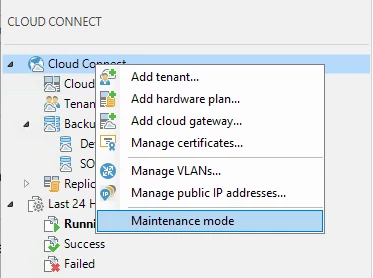
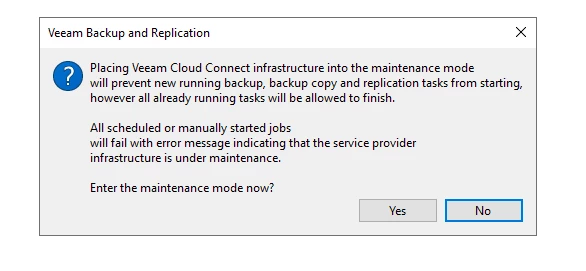
To enable Maintenance Mode from the VBR console Right Click on the Cloud Connect top level tree item and click on Maintenance Mode

Read the message and click Yes

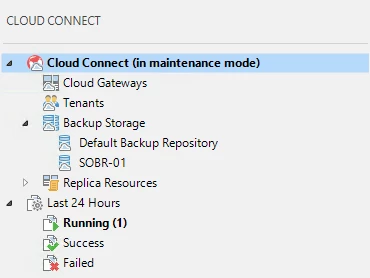
Once completed you should see the following status in the Cloud Connect menu tree

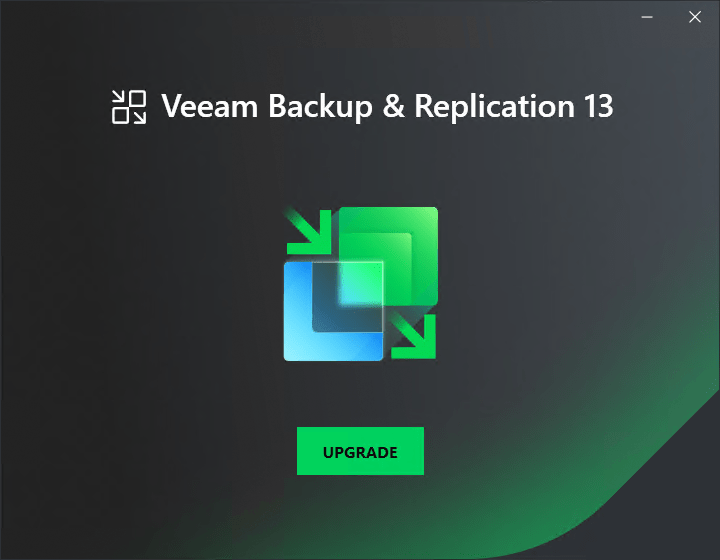
Starting the upgrade

The setup wizard prompted to update Microsoft .NET Hosting 8.0.21.

After .NET 8.0.21 installed successfully, proceeded with the upgrade.

Read and Accept License Agreement

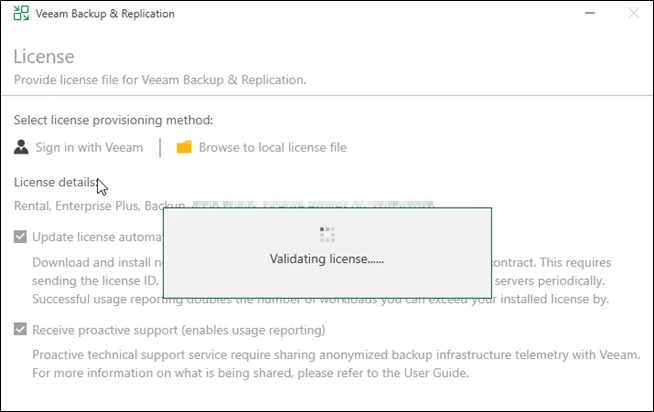
Provide License File

VBR 13 simplifies licensing during upgrade. Instead of manually downloading and uploading a license file, you can sign in to your Veeam account from the wizard and install a license directly.

You can still browse and install a local license file if required. Just ensure the license matches the correct product version.

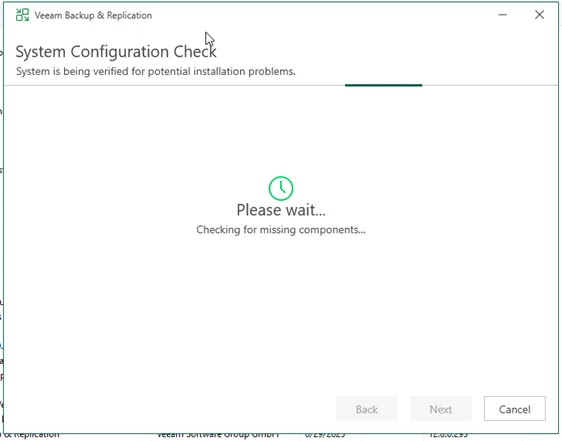
System configuration check

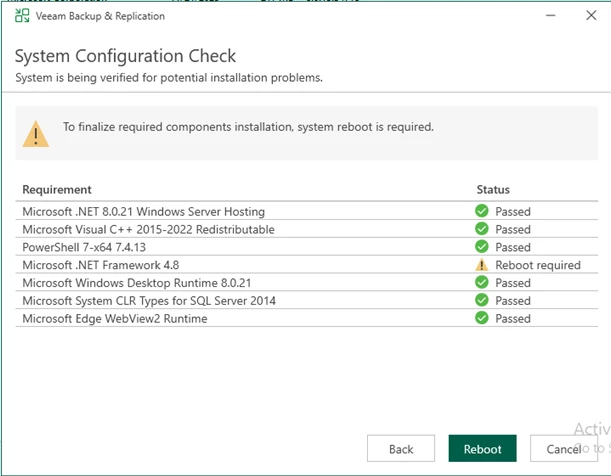
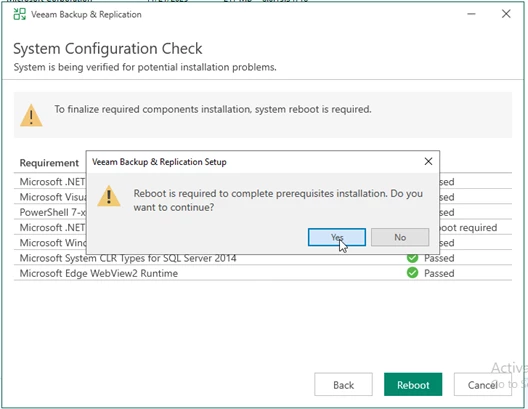
At the System Configuration Check step, the wizard verifies required software components. If anything is missing, the setup installs it automatically. After installation, a reboot may be required. Click Reboot, then restart the setup and continue.

Once the VM is rebooted and online, Start the VBR setup again, Accept the agreement -> License details -> Perform Configuration Check

Configuration Check

During Configuration Check, VBR scans your environment for anything that will not survive the move to v13. This helps prevent breakage after the upgrade.

Pay close attention to warnings about removed features.

Deprecated features

  • Restore point based retention
    Earlier you could set retention as “keep 30 restore points” instead of “keep 30 days.” In v13, you cannot configure restore point based retention for new jobs. New jobs must use time based retention.
  • Reversed incremental backup mode
    This mode kept the most recent backup as a full, with older restore points as incrementals. In v13, you cannot create new jobs with reversed incremental mode. Existing jobs may continue to run, but plan to migrate to forward incremental with periodic fulls.
  • Single storage backup format option
    Earlier you could choose the older single chain format at repository level. In v13, this format is no longer available for new repositories or jobs. The supported default is per machine backup chains.
  • Active Directory based authentication for new Cloud Connect tenants
    Earlier tenants could authenticate using AD users and groups. In v13, AD based authentication cannot be enabled for new tenants. New tenants must use local Veeam accounts or other supported methods. Existing AD based tenants are not forced to change immediately, but no new AD based tenants can be created.
Discontinued features

These are fully removed.
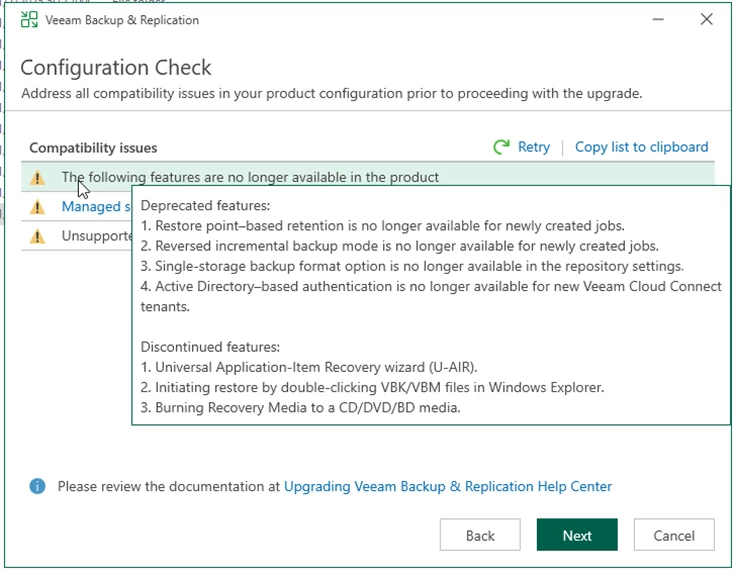
  1. Universal Application Item Recovery wizard (U AIR)
    The generic multi app item recovery wizard is removed. Use application specific recovery options instead.
  2. Starting restore by double clicking VBK or VBM in Windows Explorer
    This shortcut is removed. Restores must be initiated from the Veeam console.
  3. Burning Recovery Media to CD, DVD, or BD
    The built in burn option is removed. You can still create ISO or USB recovery media and burn using another tool if needed.

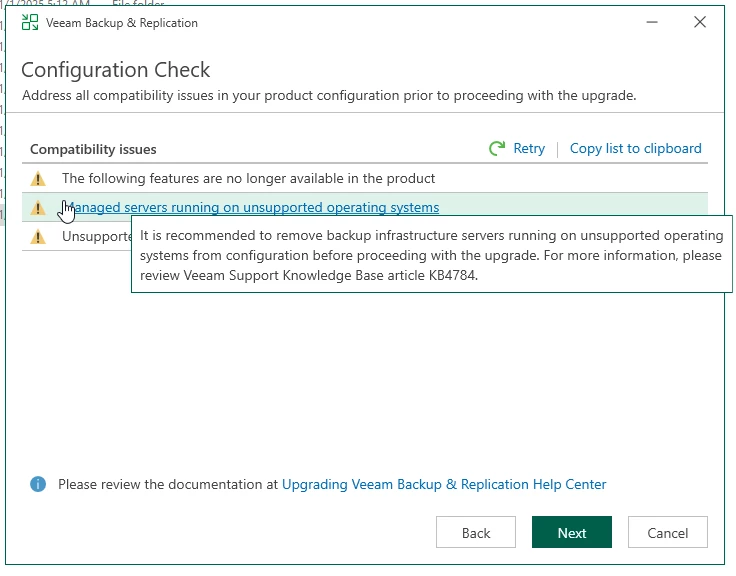
Unsupported operating systems

The Configuration Check also flags managed servers running unsupported Windows versions. Upgrade or remove those servers first, then click Retry to confirm everything is compliant before proceeding.

Unsupported tenant versions

Unsupported tenant version is one of the most critical checks in a Cloud Connect upgrade because it directly affects tenant backup continuity. Tenants on old builds cannot communicate with the provider once you move to v13. After the upgrade, their backup copy jobs, backup to cloud repository jobs, and restore portal operations will fail until they upgrade. This impacts all Cloud Connect traffic, including agent backups, Cloud Connect backup, and Cloud Connect replication if used.

Export or copy the tenant list and contact each tenant to confirm their current build, then schedule their VBR and agent upgrades as soon as possible.

Cloud Connect v13 is backwards compatible with the following tenant versions:

• Veeam Backup and Replication 12.3.2.3617 and later 12.3.2 builds
• Veeam Agent for Windows 6.3.2 and later
• Veeam Agent for Linux 6.3.2 and later
• Veeam Agent for Mac 2.3.1 and later


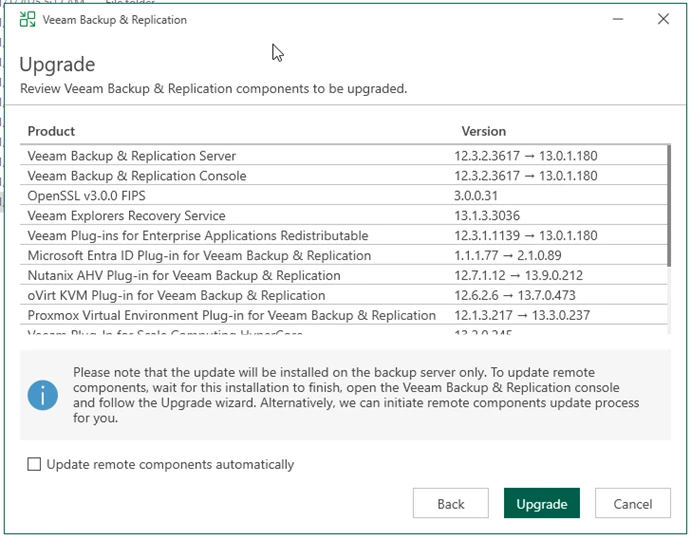
Review the list of Veeam components and plug ins that will be upgraded, then confirm before clicking Upgrade.

Select Update remote components automatically if you want gateways, proxies, and repositories upgraded automatically after the core server upgrade. Otherwise, VBR will prompt you to update them at first launch.

Upgrade execution

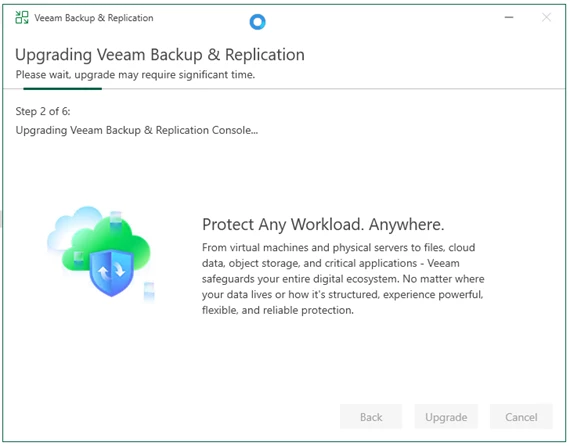
You will see the upgrade progress through six stages:

  1. Upgrading Veeam Backup and Replication Server
    Updates core VBR services, binaries, and configuration.
  2. Upgrading Veeam Backup and Replication Console
    Updates the admin console to match the server version.
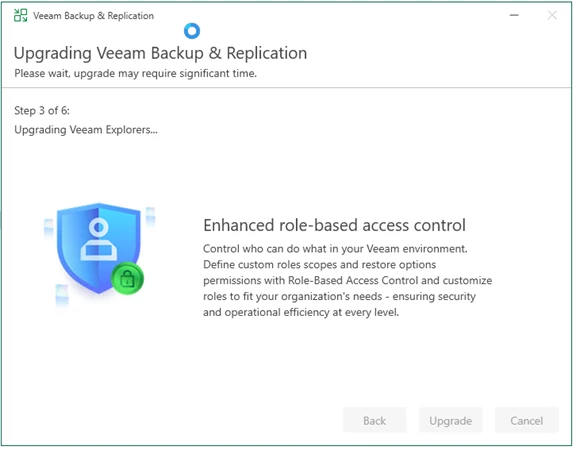
  3. Upgrading Veeam Explorers
    Updates application explorers like AD, Exchange, SQL, Oracle, and SharePoint.
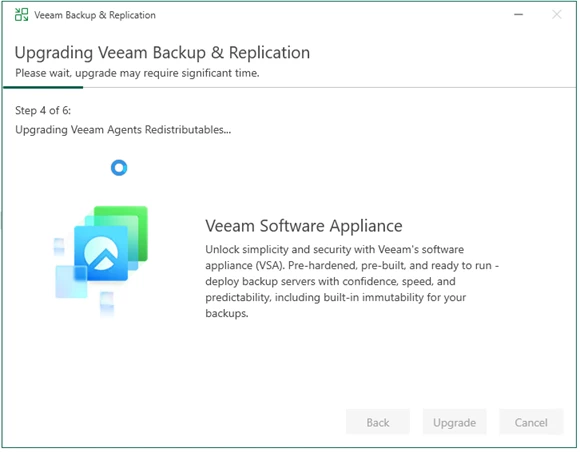
  4. Upgrading Veeam Agents redistributables
    Refreshes Windows and Linux agent packages available for push install.
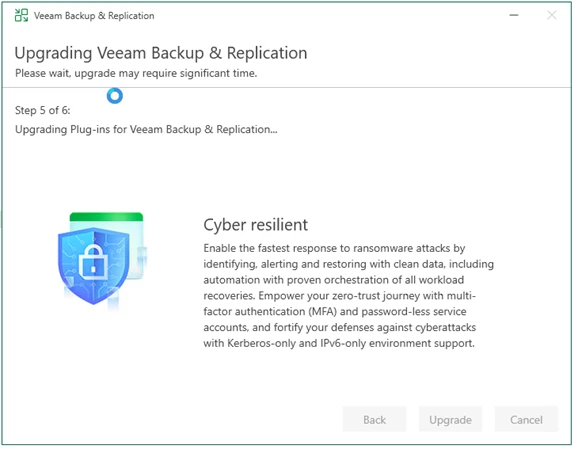
  5. Upgrading plug ins for Veeam Backup and Replication
    Updates platform and integration plug ins such as VMware, Hyper V, Nutanix, Entra ID, and others.
  6. Finalizing installation and starting services
    Completes cleanup and restarts all Veeam services on v13.

Upgrade completed successfully.

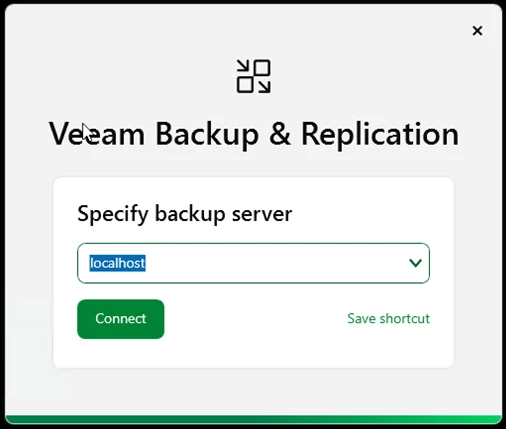
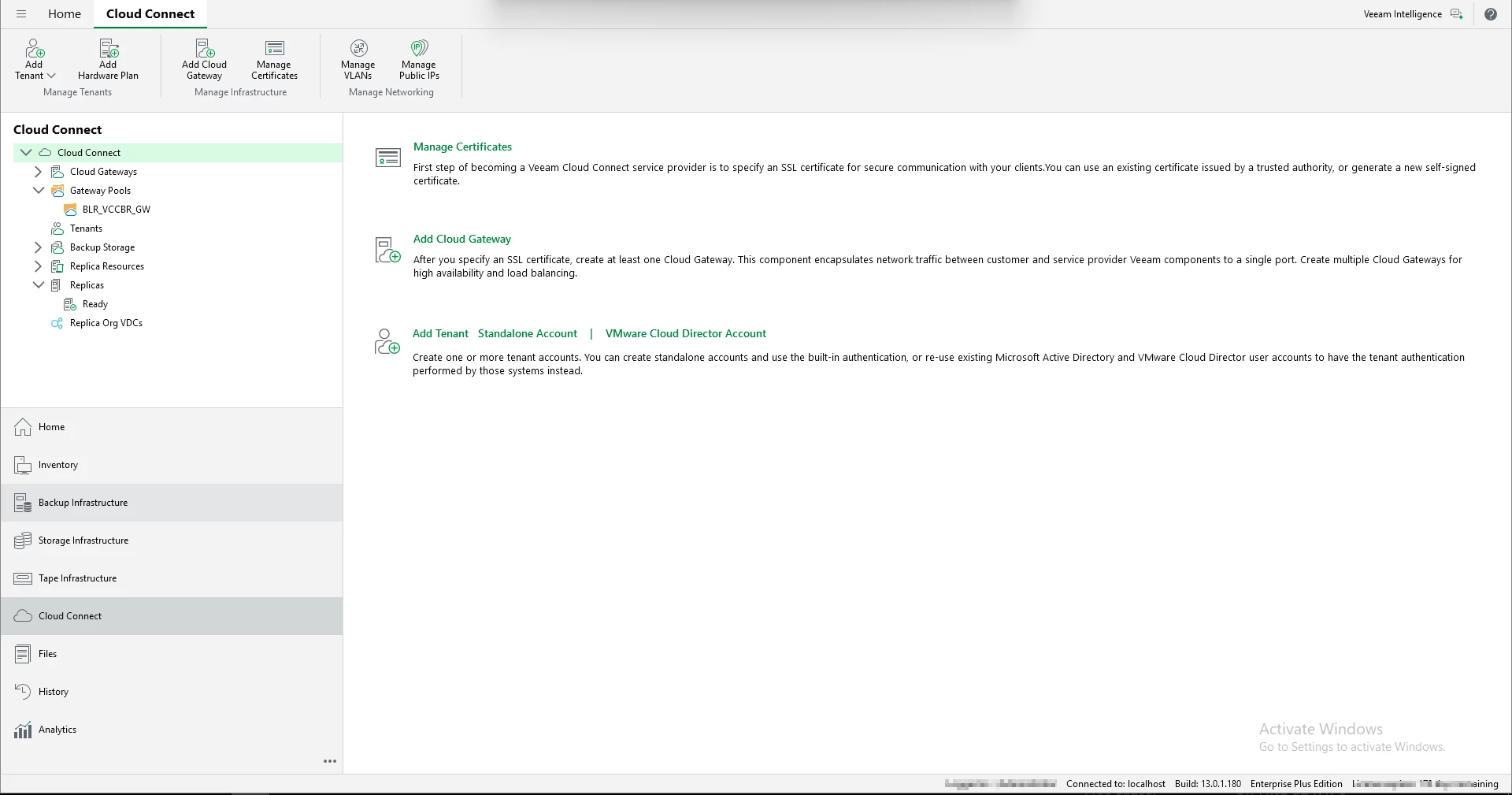
Launch the V13 console 

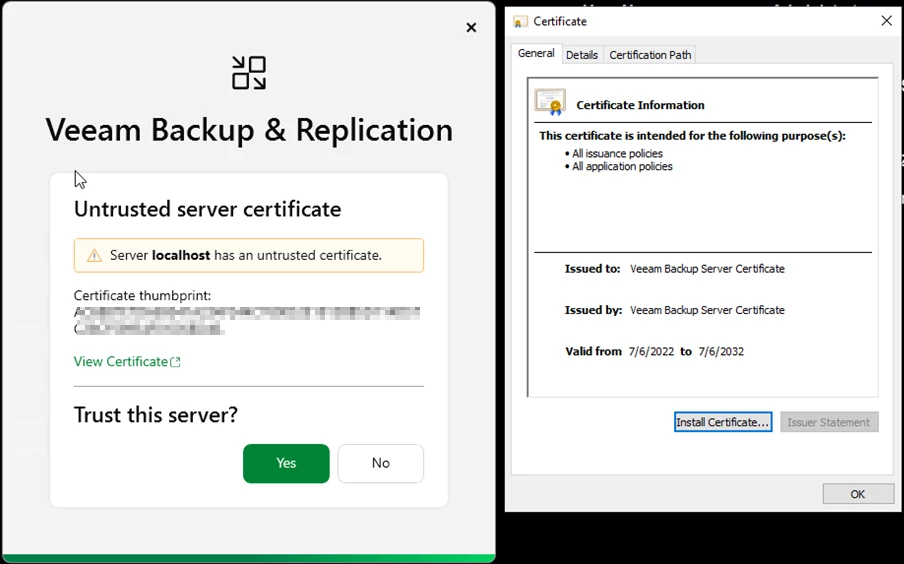
View the certificate and install them locally 

I really love the new UI look! 


Post upgrade checks

After the upgrade:

• Confirm all Veeam components, including gateways and repositories, are updated and online.
• Verify all Cloud Connect services are running.
• Disable Cloud Connect maintenance mode.
• Confirm gateways are online and listening on required ports.
• Spot check repository writes and metadata updates.
• Run a tenant backup through a gateway and confirm a new restore point is created.
• Perform a restore test from Cloud Connect backups.

Hope this walkthrough helps you plan your v13 Cloud Connect upgrade with confidence and minimal tenant impact.

Step-by-step guide to migrate Veeam Backup and Replication SQL Database to another server.

Step-by-step guide to migrate Veeam SQL Database to another server.

Before you begin: If your Veeam server running in VM you can take snapshot the VM incase if you want to revert back.

Step 1: Stop all running backup jobs, Copy jobs and replication and disable them

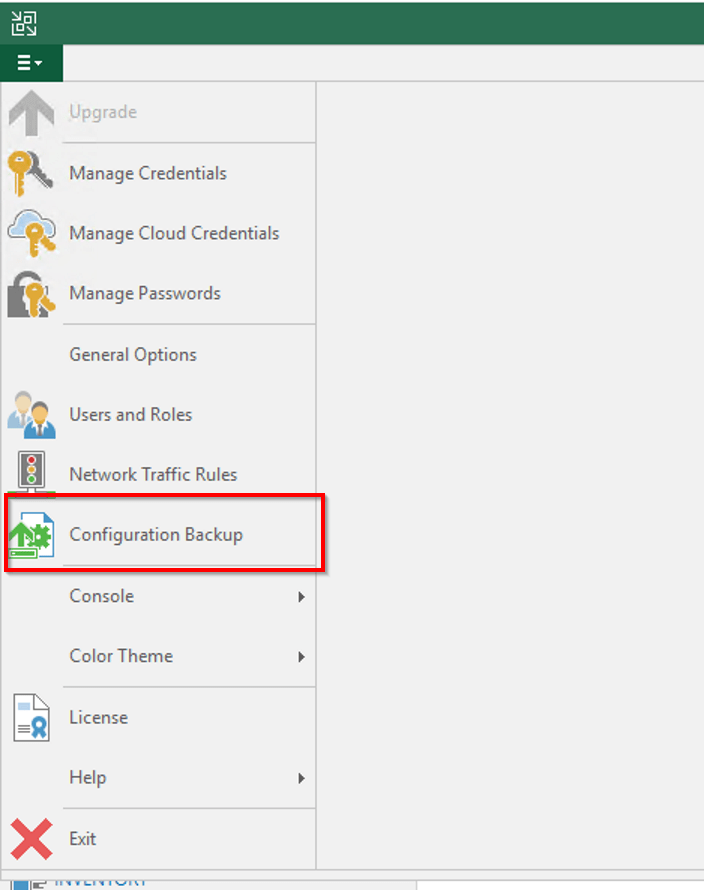
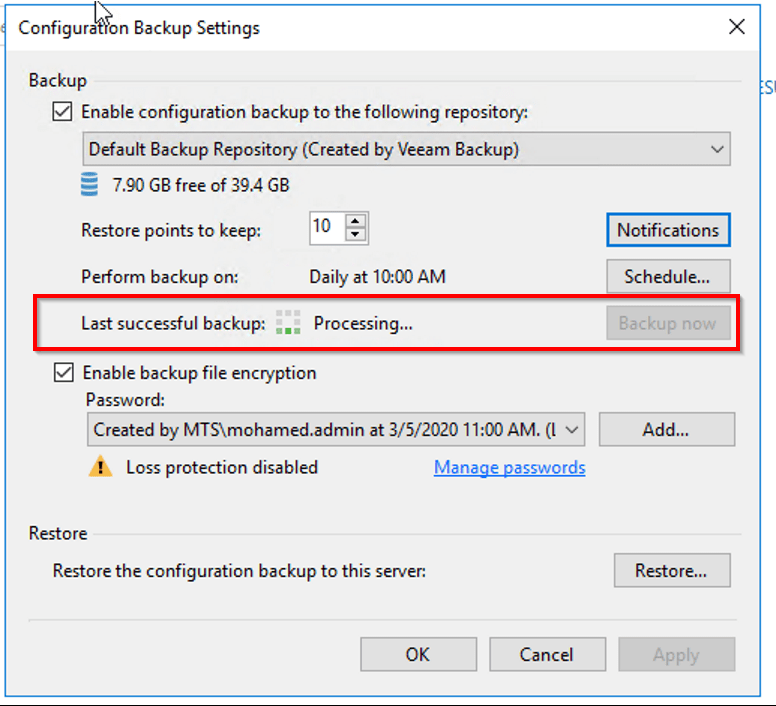
Step 2: Open Veaam Backup server ==> Options ==> Configuration Backup and take manual backup of configuration database


Enable ecryption for the configuration backup. Veeam requires that you encrypt the configuration backup if you have created at least one password in the Password Manager on the backup server.

Once backup has been completed, close the Veeam Backup and Replication console.

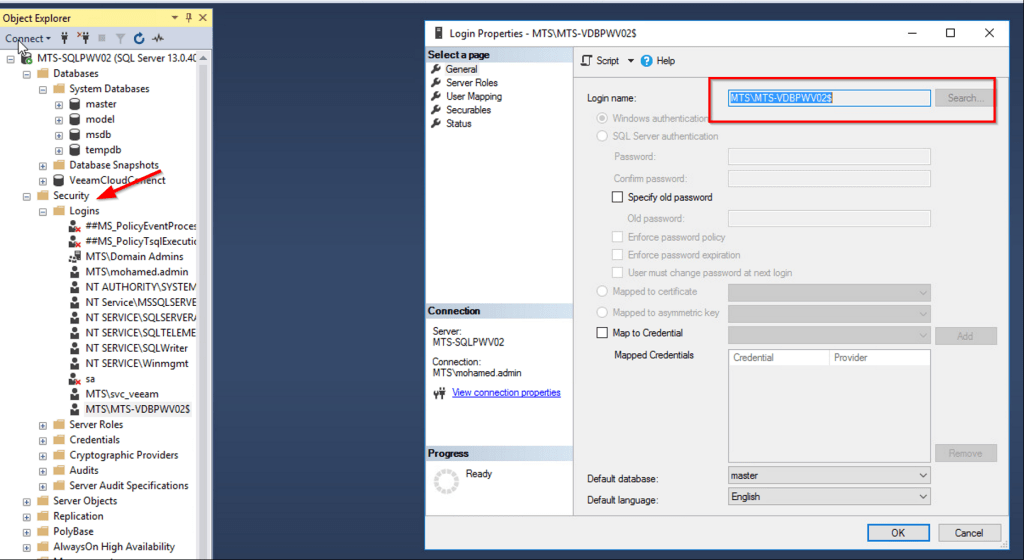
Step 3: Create empty database in new SQL server and assign permission.

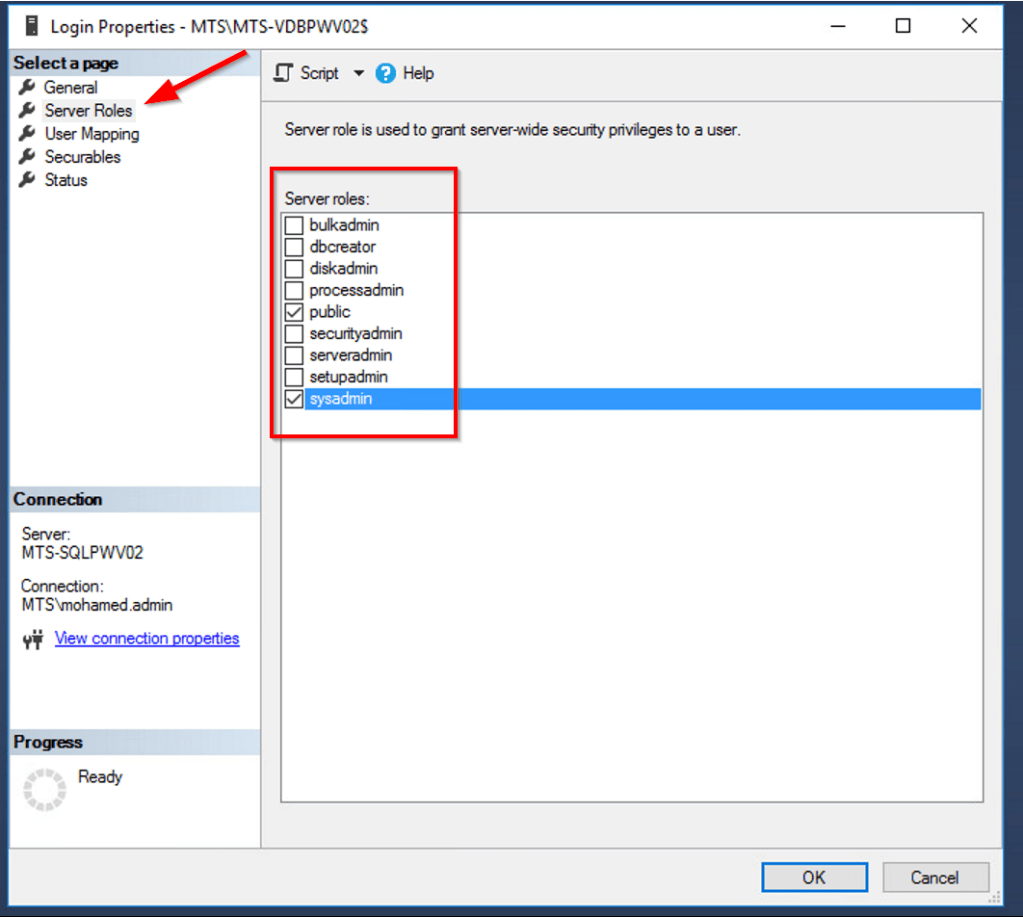
Step 4: Assign “sysadmin” permission to Veeam Backup server system account

Step 5: Open Veeam.Backup.DB.Config utility to change database connection settings.

C:\Program Files\Common Files\Veeam\Backup and Replication\DBConfig\Veeam.Backup.DBConfig

Machine generated alternative text:
User Account Control 
Do you want to allow this app to make 
changes to your device? 
Veeam.Backup.DBConfig 
Verified publisher: Veeam Software Group GmbH 
File origin: Hard drive on this computer 
Show more details 
Yes 
No

Step 6: Enter Database Name and SQL Server name

Select “Yes

Wait some time to finish the process and click “Next” and “Finish

Step 7: Restore the Configuration backup to new SQL Database

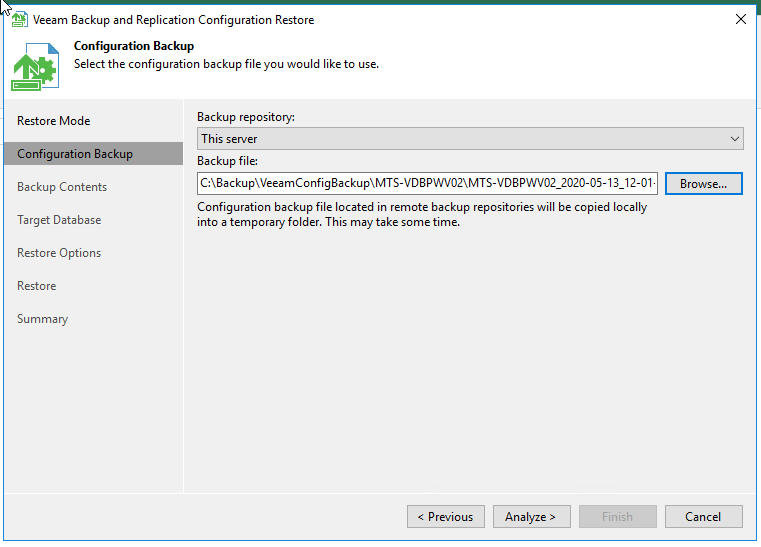
Open Configuration backup ==> Restore ==> Select Migrate

Step 8: Browse and Select the Configuration Database Backup file and Click Analyze

Click “Next” to proceed

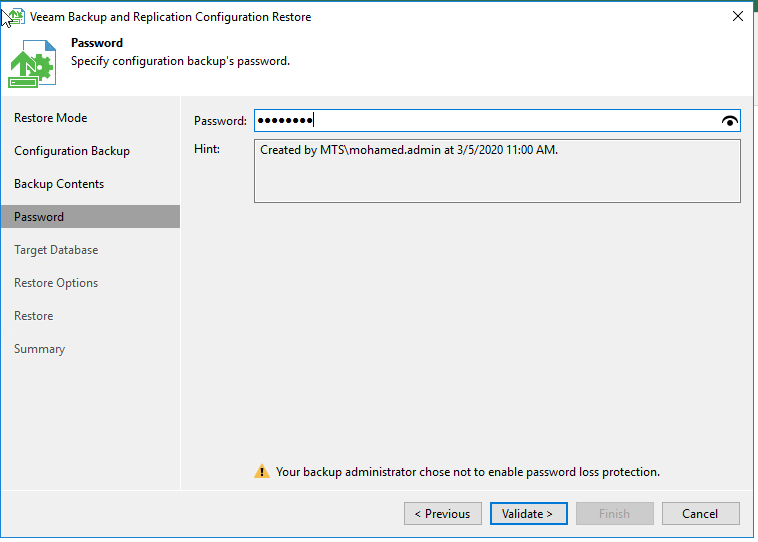
Enter the Configuration backup password and click Validate

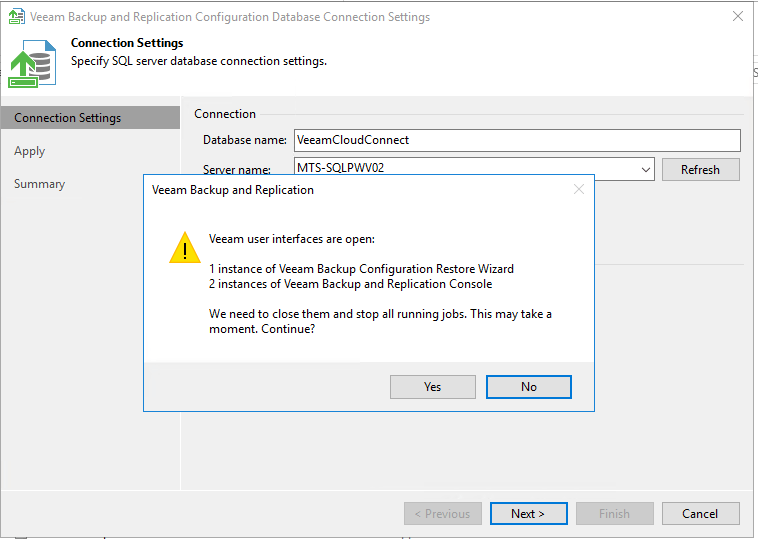
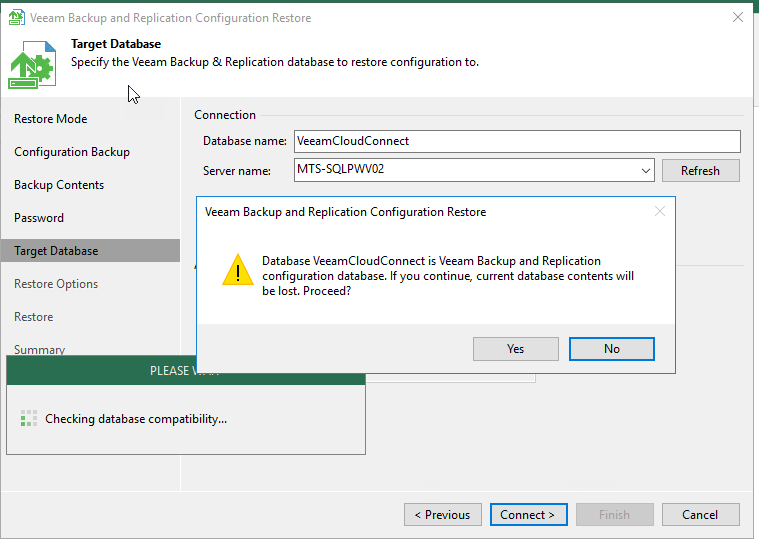
Step 9: Enter the Target Database name and SQL server name and Click Connect

Click “Yes” and “Connect” to proceed

Click “Restore

Now the Database restore will start and wait until it completes

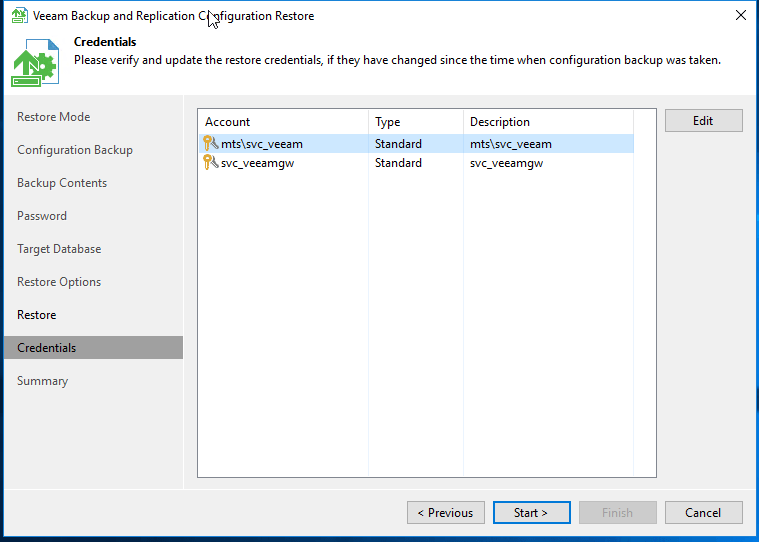
Click Next and verify the credentials and update if any credentials has changed

Migration has been completed successfully. Click Finish and launch Veeam Backup console

Post migration, Resume the Backup jobs, Copy jobs and replication jobs

Reschedule Veeam configuration database backup and make sure configuration backup encryption enabled

Citrix XenDeskop 7.x upgrade failed with error code “InstallSourceAbsent” (1612)

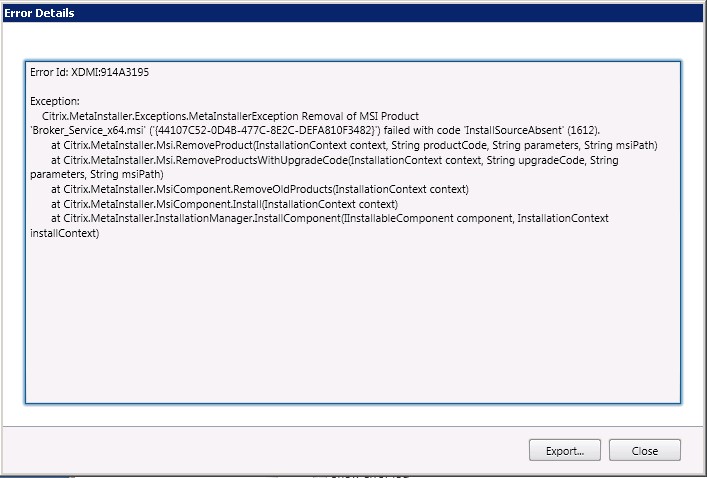
I got this below error when I upgrade my XenDesktop Delivery Controller to 7.15

DC Error1

Error details:

“Removal of MSI Product ‘Broker_Service_x64.msi’ (‘{44107C52-0D4B-477C-8E2C-DEFA810F3482}’) failed with code ‘InstallsOURCEaBSENT’ (1612).”

DC Error2
View more error details Error Id: XDMI:914A3195DC Error3

Solution:

I have tried to remove the Broker_Service_x64.msi manually using the MsiExec command line with product code which shown on the error message.

msiexec /x {44107C52-0D4B-477C-8E2C-DEFA810F3482}

It prompt to insert the missing source file “Citrix.Common.Commands.Install_x64.msi”DC Error5

Download the missing MSI source file from below url and insert

https://github.com/arpheus/xd7publisher/blob/master/Citrix.Common.Commands.Install_x64.msi

Once the Broker_Service_x64.msi manually removed, Citrix Delivery controller upgrade has been successfully completed.

Install-AntiSpamAgents Fails in Exchange 2016

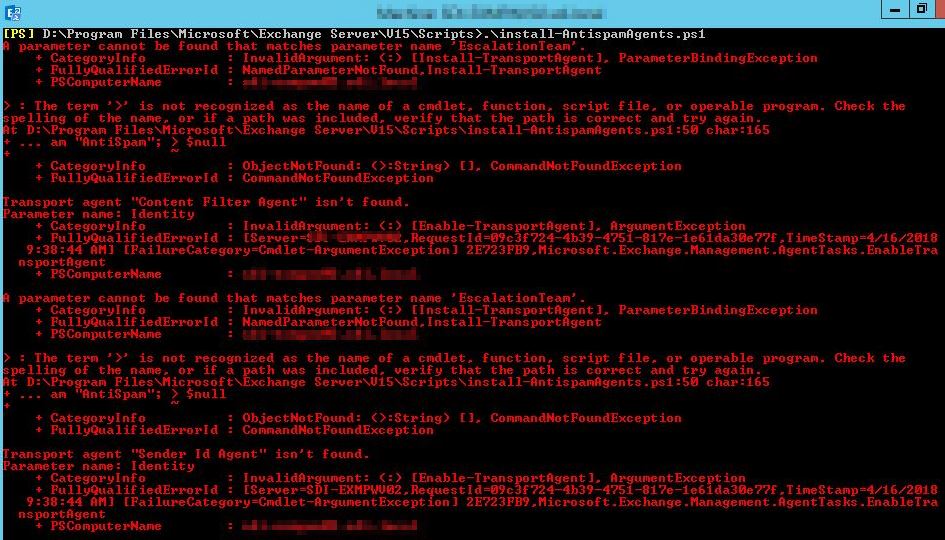
Installing AntiSpam Agents such as Recipient Filter Agent, Sender Filter Agent, Sender Id Agent, Content Filter Agent in Exchange server 2016 fails with below error

“[PS] D:\ExchangeDir\Scripts>.\install-AntispamAgents.ps1
A parameter cannot be found that matches parameter name ‘EscalationTeam’.
+ CategoryInfo : InvalidArgument: (:) [Install-TransportAgent],
ParameterBindingException
+ FullyQualifiedErrorId : NamedParameterNotFound,Install-TransportAgent
+ PSComputerName : ServerName.local”

Antispam Agents Error2

Solution:

Open the Exchange installation directory and go to <Exchange dir.>\Scripts folder and find the Install-AntiSpamAgents.ps1 Script.

Edit the script file and remove the “-EscalationTeam “AntiSpam”” line highlighted in Red.

install-TransportAgent -Name:$name -TransportAgentFactory:$factory -AssemblyPath:$agentAssembly -TransportService $transportService -EscalationTeam “AntiSpam”; > $null

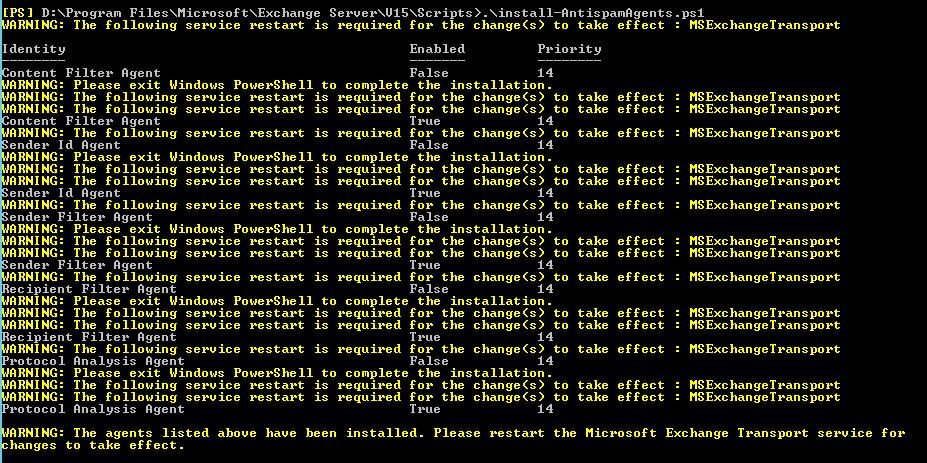
Once removed the line save it and run the script again

Antispam Agents Fixed


Featured

Exchange Server Error: An Incomplete installation was detected error message when uninstalling Exchange server 2013

When I tried to uninstall the old exchange server 2013 from an environment the process failed with below error.

Uninstall error

Solution:

Using the Exchange 2013 setup file open command prompt as administrator and run the following command:

Setup.exe /mode:Uninstall /IAcceptExchangeServerLicenseTerms

After removing server roles and files Exchange server 2013 completely uninstalled from the server.