
Recently, I was involved in a production support case where a Veeam software appliance deployed on physical hardware failed to boot after an unexpected power interruption.
The system dropped directly into:
“You are in emergency mode. Cannot open access to console, the root account is locked.”
At this point, many administrators assume the appliance is corrupted or that Veeam needs to be reinstalled. In this case, the backup administrator had already reinstalled VBR once, and the issue happened again.
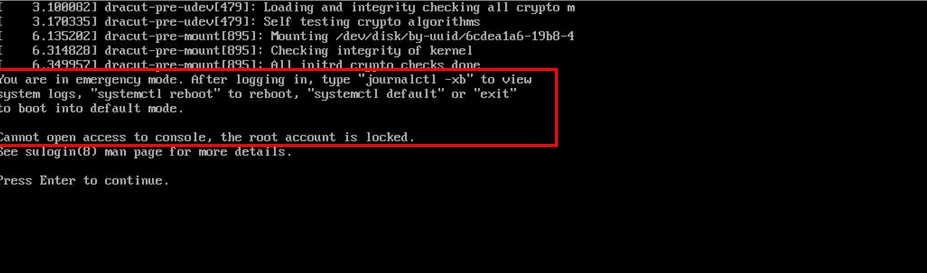
This is not a Veeam software issue. The problem occurs at the Linux storage layer, specifically with LVM and XFS.
The Veeam appliance is built on LVM logical volumes formatted with XFS. During boot, Linux must detect storage, activate LVM volume groups, and mount all filesystems defined in /etc/fstab before any services start.
If any of these steps fail, the system enters emergency mode to protect itself. This is a safety mechanism, not a catastrophic failure.
Understanding this boot sequence makes troubleshooting much easier and avoids unnecessary reinstallation.
Common Root Causes:
- Abrupt shutdown / forced power off
- Host crash
- Storage delay during boot
- XFS journal corruption
- LVM not auto-activating
In environments without proper UPS or graceful shutdown, this is more common than people expect.
Recovery Procedure:
Step 1 – Boot into Recovery Mode
At GRUB:
- Press e
- Add at end of Linux line type : rd.break
- Press Ctrl + X
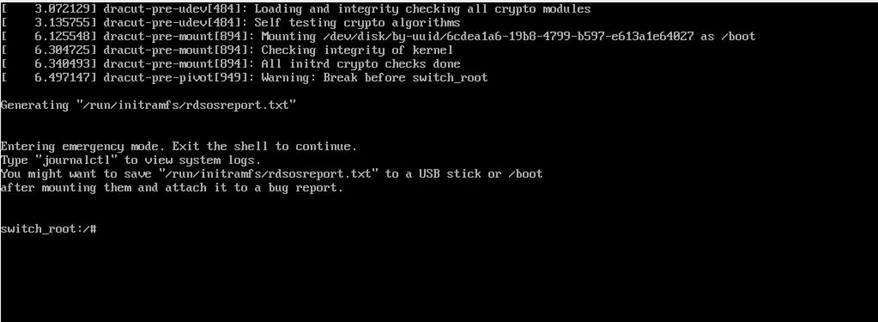
This boots the system into a minimal emergency shell before the full system mounts.
Step 2 – Mount the System and Enter Installed OS
Once inside the emergency shell, the root filesystem is mounted read only. We must remount it read write and enter the installed system environment.
Run:
- mount -o remount,rw /sysroot
- mount -t proc /proc /sysroot/proc
- mount –rbind /sys /sysroot/sys
- mount –rbind /dev /sysroot/dev
- chroot /sysroot

Now you are operating inside the actual installed OS.
Cross verifies if all the volumes are visible in the df-hT or lsblk
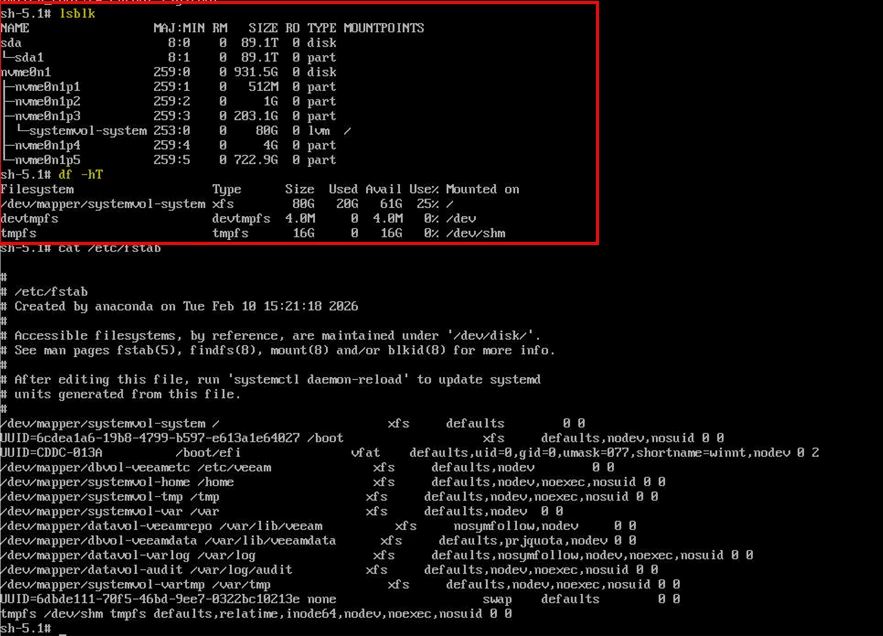
If logical volumes are missing or inactive, move to the next step.
Step 3 – Activate LVM
In many cases, LVM simply failed to auto activate during boot.
- vgscan
- vgchange -ay
- lvs
Confirm all datavol and dbvol logical volumes are active.
Common volumes in Veeam hardened appliance include:
datavol-veeamrepo
dbvol-veeamdata
datavol-varlog
datavol-audit
If volumes activate and mount successfully, exit and reboot. In a large percentage of cases, this alone resolves the issue.
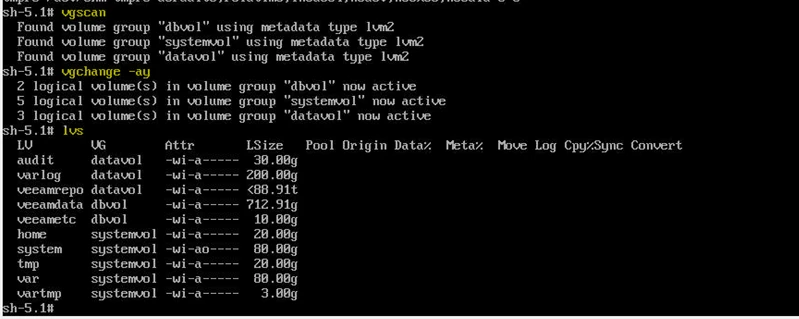
Type exit and reboot.
Step 4 – Repair XFS (If Mount Fails)
If you encounter errors during mount such as :
Cannot read superblock
Structure needs cleaning
Mount failed
Then XFS metadata corruption likely occurred during abrupt shutdown.
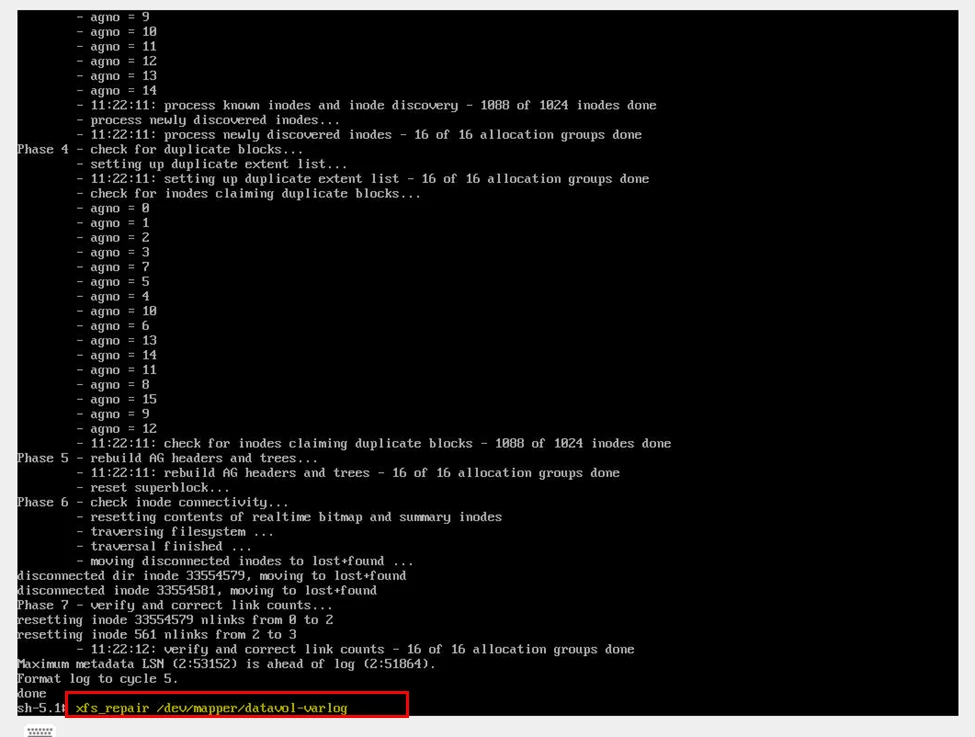
From the chroot environment, after activating LVM, run:
xfs_repair /dev/mapper/<logical_volume>
In our production case, the affected volume was datavol-varlog.
Allow the repair process to complete. Depending on volume size, this may take time.
Step 5 – Mount All Filesystems:
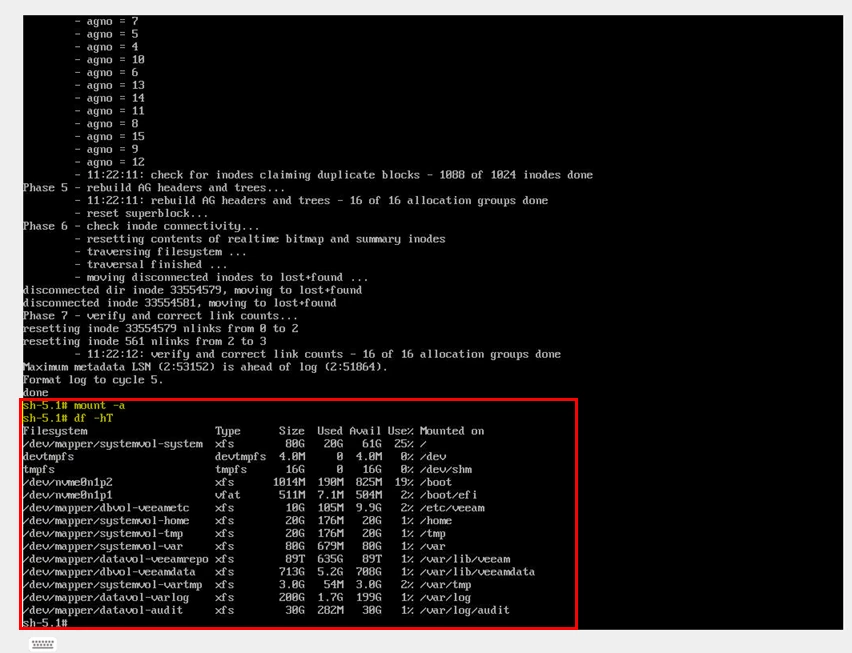
After repair:
mount -a
df -h
Confirm all filesystems mount correctly.
Step 6 – Rebuild initramfs
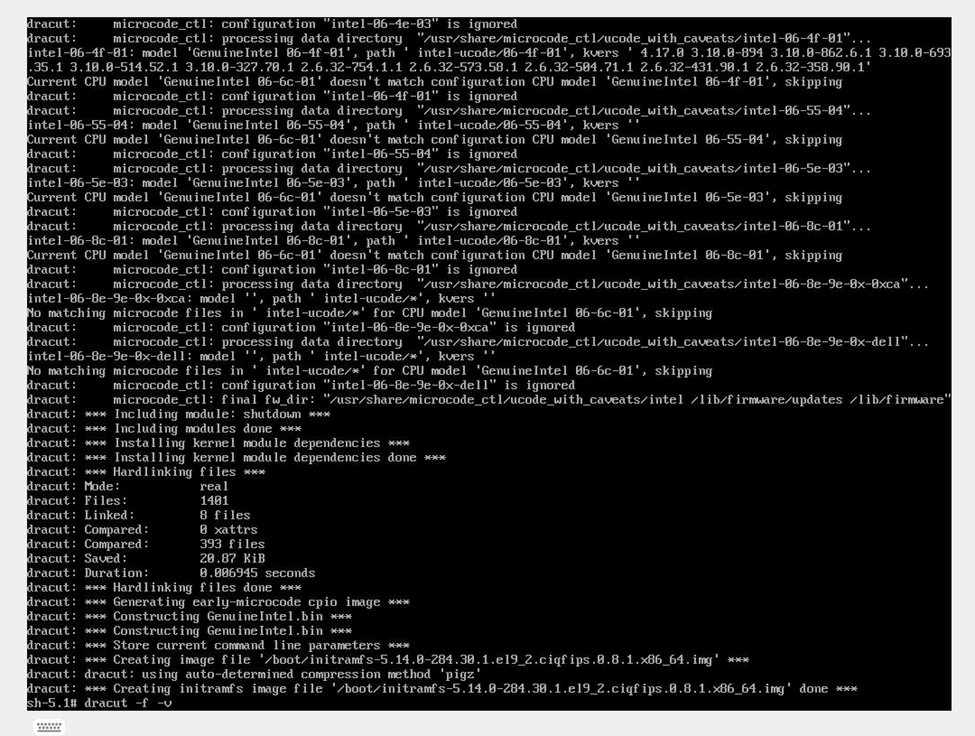
If LVM activation failed during boot once, it can fail again. Rebuilding initramfs ensures storage drivers and LVM modules are correctly embedded.
- dracut -f -v
This regenerates the boot image.
Verify that a new initramfs image is successfully generated.
Step 7 – Enable LVM Monitoring
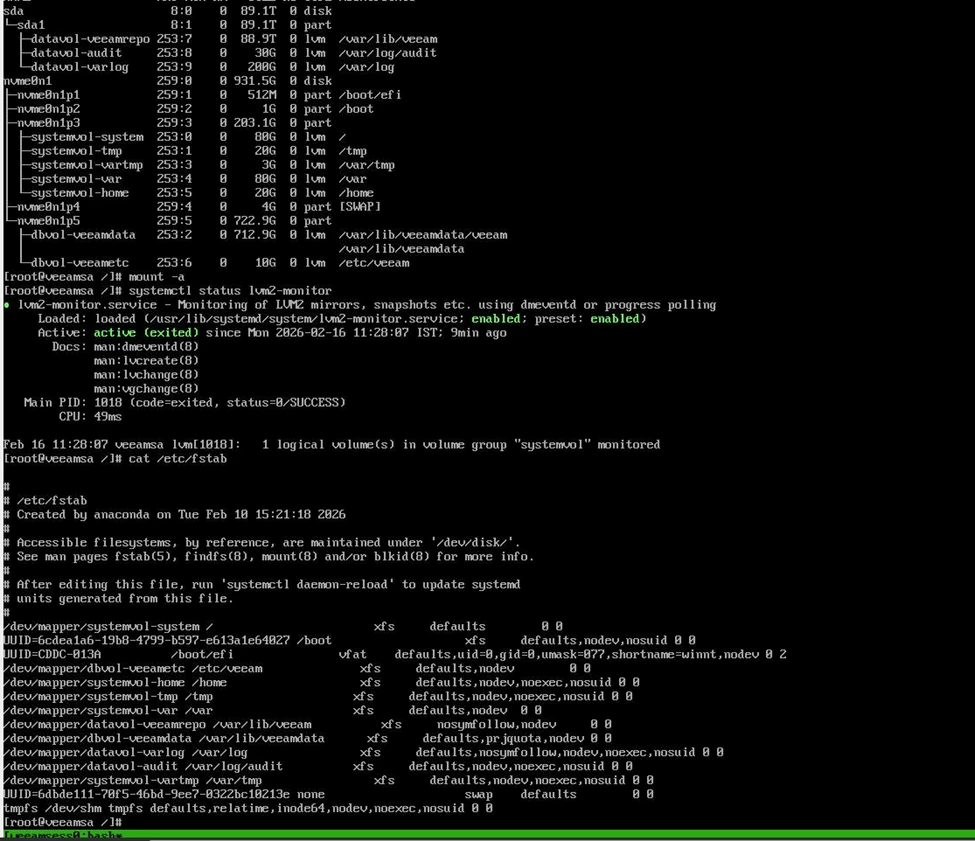
One of the most overlooked steps in Veeam appliance deployments is ensuring lvm2-monitor is enabled.
- systemctl enable lvm2-monitor
- systemctl start lvm2-monitor
Without this service active, LVM auto activation during boot can behave inconsistently, especially on physical hardware with delayed disk initialization.
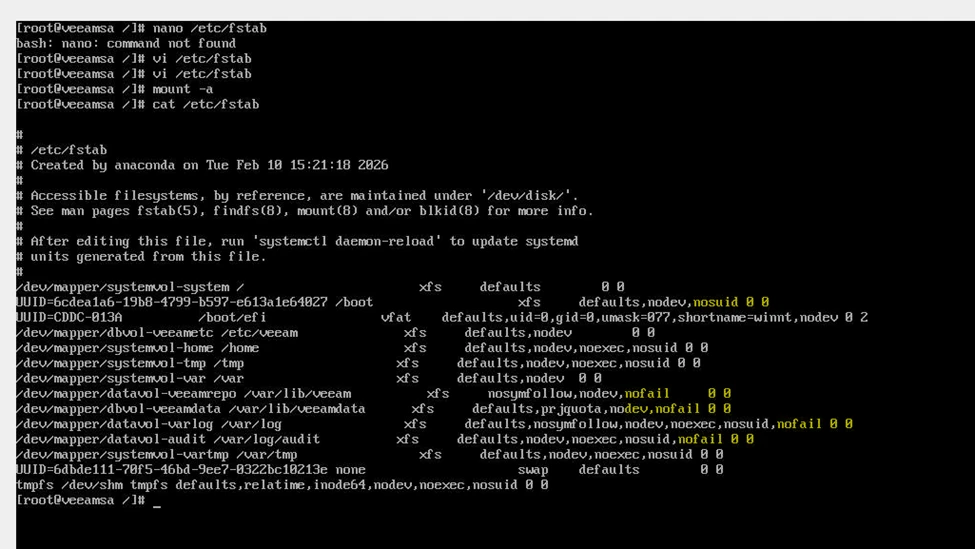
Step 8 – Harden fstab to Prevent Future Lockouts
This is a key operational improvement.
If non critical volumes are defined in fstab without nofail, any mount failure will force the system into emergency mode.
Add nofail to non-system LVM mounts:
Example:
- defaults,nosymfollow,nodev,nofail
- Apply only to:
- datavol-veeamrepo
- dbvol-veeamdata
- datavol-varlog
- datavol-audit
Do NOT modify systemvol entries.
This ensures the OS will continue booting even if a secondary volume experiences issues.
Step 9 – Reboot and Post Recovery validation
Run:
- mount -a
- lsblk
- systemctl status lvm2-monitor
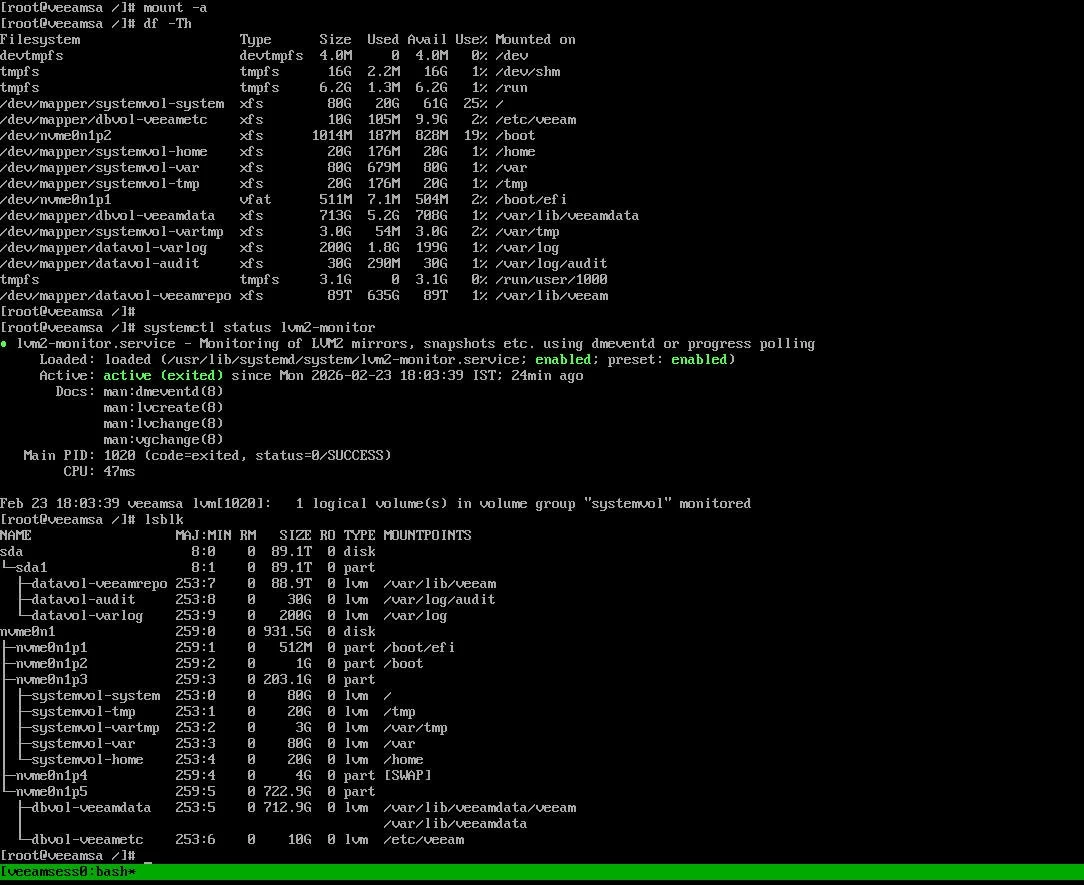
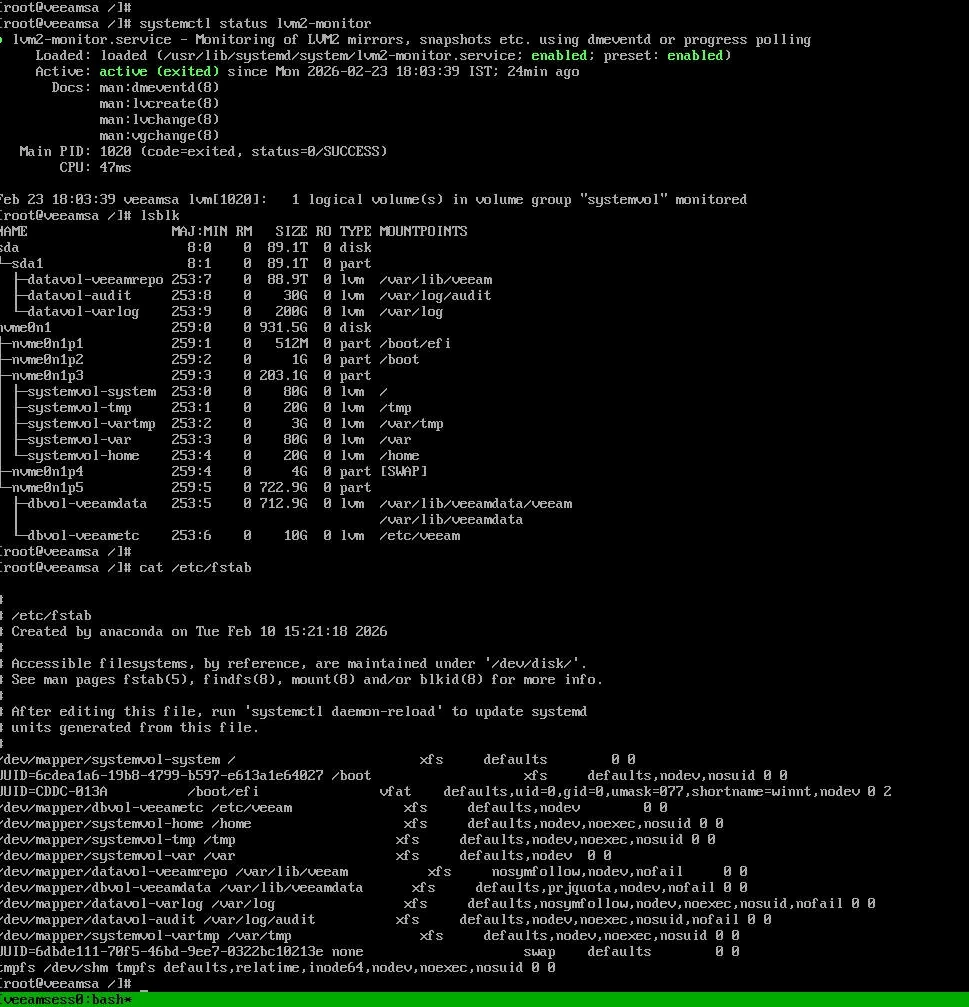
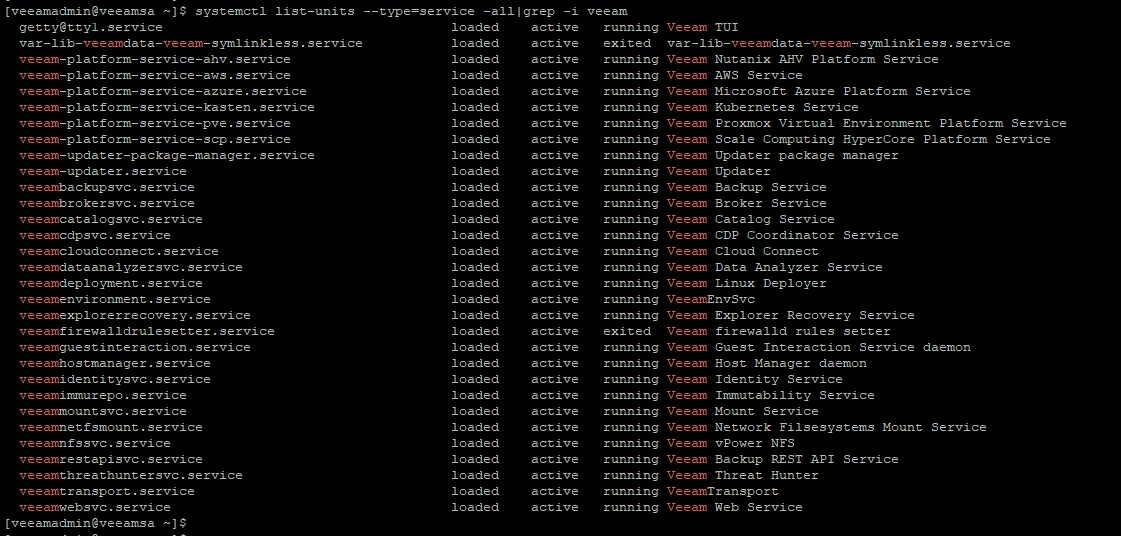
Confirm:
All logical volumes are mounted
No degraded state exists
LVM monitoring service is running
Veeam services start normally
Important Lessons
This incident highlights a few important points when running Veeam appliances on physical hardware.
First, this was not a Veeam issue. The problem was at the Linux storage level. Reinstalling VBR will not fix an LVM or XFS issue. Understanding that saves time and avoids unnecessary rebuilds.
Second, power protection is critical. Backup appliance without proper UPS and clean shutdown policy is exposed to filesystem corruption.
During boot, LVM must activate before disks mount. On physical servers, especially with RAID, disks may take a few seconds to appear. If that process fails, Linux enters emergency mode to protect itself.
Finally, if your backup strategy depends on Veeam appliance, the backup team must understand the basics of Linux recovery and be comfortable checking storage and repairing filesystems when required.

 Fix the Cloud